

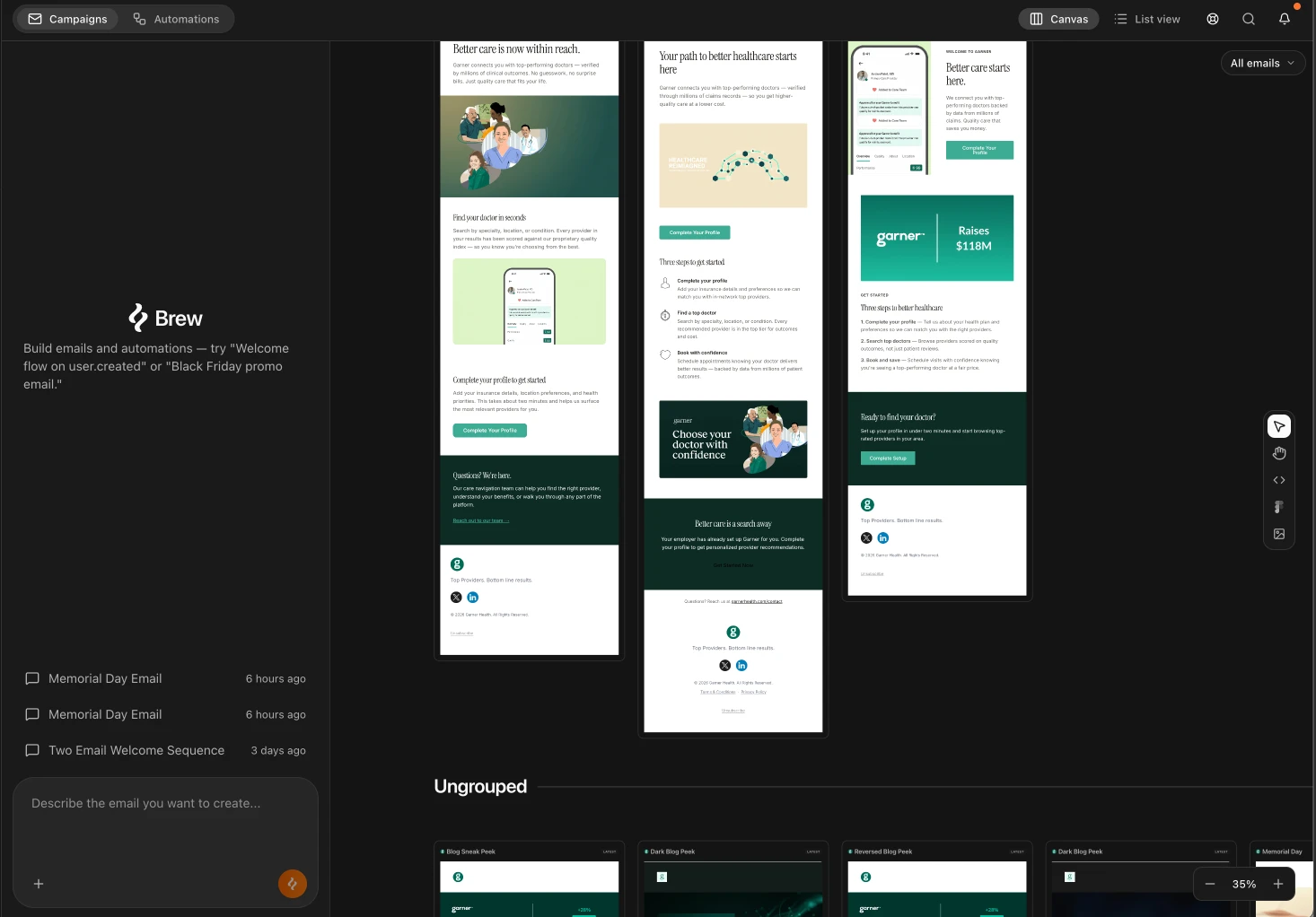
 Emails in Brew are one-off sends, newsletters, product announcements, promotions, event invites. If you’re used to the term “campaign” from other email tools, that’s what we mean. An email you write, schedule, and send to an audience at a moment you choose.
One prompt → one or more emails sent at a chosen time.
This is different from Automations, which send in response to events and run in the background automatically. Not sure which to use? See Emails vs Automations.
Emails in Brew are one-off sends, newsletters, product announcements, promotions, event invites. If you’re used to the term “campaign” from other email tools, that’s what we mean. An email you write, schedule, and send to an audience at a moment you choose.
One prompt → one or more emails sent at a chosen time.
This is different from Automations, which send in response to events and run in the background automatically. Not sure which to use? See Emails vs Automations.
Groups and Canvases
Open Emails in the sidebar and Brew shows every group in your account. Each group is its own canvas. Emails generated inside a group live on that group’s canvas and nowhere else, so the emails you are comparing are always the ones you put together on purpose. Think of it as a folder structure. A group is a folder, its canvas is what you see when you open the folder, and every email sits in exactly one of them.- Ungrouped is the default. New emails land here unless you create them inside a group or move them into one. It is a canvas like any other, just the one you did not have to name.
- New canvas creates a group. Name it by campaign, season, or product line, then generate or drag emails into it.
- Each group card shows a thumbnail stack of its emails, who last edited it, and when.
- See several designs side by side: when one prompt produces multiple emails, they appear next to each other on the same row
- Click into any email to edit it
- Resize, clone, or delete any email from the toolbar
- Switch between versions: every edit creates a new version, and the version dropdown lets you preview earlier ones
- Import designs from Figma, HTML, or images
Groups View vs List View
A toggle at the top of the Emails page switches between two views of the same groups:- Groups view. One card per group. Best for choosing which canvas to open and for seeing at a glance what each group holds.
- List view. Every email in a compact table, sectioned by group with each section collapsible. Best for scanning a larger library, and the clearest picture of which email belongs where. Drag an email from one section to another to move it between groups.
Creating an Email
Open Home and describe what you want in the chat. Be specific about the purpose, the audience, and the tone, the more detail you give, the better the first version. Some examples:- “Write a product launch announcement for our new dashboard feature. Excited tone, one clear CTA to try it.”
- “Create a spring sale email with a product grid and a code that expires Sunday.”
- “Draft a re-engagement email for customers who haven’t logged in for 30 days.”
{{ firstName }} into the copy.
Editing a Generated Email
Click any email on the canvas to select it. You have two ways to edit: Edit with AI (chat). Use the chat panel for bigger changes:- “Make this more direct.”
- “Add a second version for enterprise buyers.”
- “Replace the hero with a product screenshot.”
Variants
Ask Brew for variants when you want options without losing the original:- “Give me a shorter version of this email with a single CTA.”
- “Make a more playful version of this welcome email.”
- “Generate a B variant of this announcement with a different hero image.”
Sending
When the email is ready, click Send in the toolbar. Pick a saved audience, choose a verified domain, and review sender details. Then choose when the email goes out:- Send now: the email goes out right away.
- Schedule: set a date and time for the email to go out automatically.
- Intelligent send: set one or more delivery windows and Brew delivers within them, optionally at each contact’s usual open time.
- Gradual send: ramp daily volume over several days to warm up a new or low-volume domain.
Exporting to Another ESP
If you use HubSpot, Klaviyo, Mailchimp, or another ESP, click Send in the top right and choose Export template. Every ESP you have already connected appears as a destination, so connect the integration first. See Integrations for the full list of supported platforms and how to connect one.Importing Existing Designs
Already have email designs? Bring them into Brew from the Import tools on the right side of the canvas:
You can also forward emails to
hello@email.brew.new. Forwarded emails land in Templates → Forwarded and can be remixed into your brand.
Need Help?
Our team is ready to support you at every step of your journey with Brew. Choose the option that works best for you:- Self-Service Tools
- Talk to Our Team
Search Documentation
Type in the “Ask any question” search bar at the top left to instantly find relevant documentation pages.
ChatGPT/Claude Integration
Click “Open in ChatGPT” at the top right of any page to explore it further with ChatGPT or Claude.