

email-design.md covers how emails are built; image-style.md covers how generated imagery looks. They are documents, not settings. Brew reads them at generation time, so whatever they say is what you get.
What the Files Contain
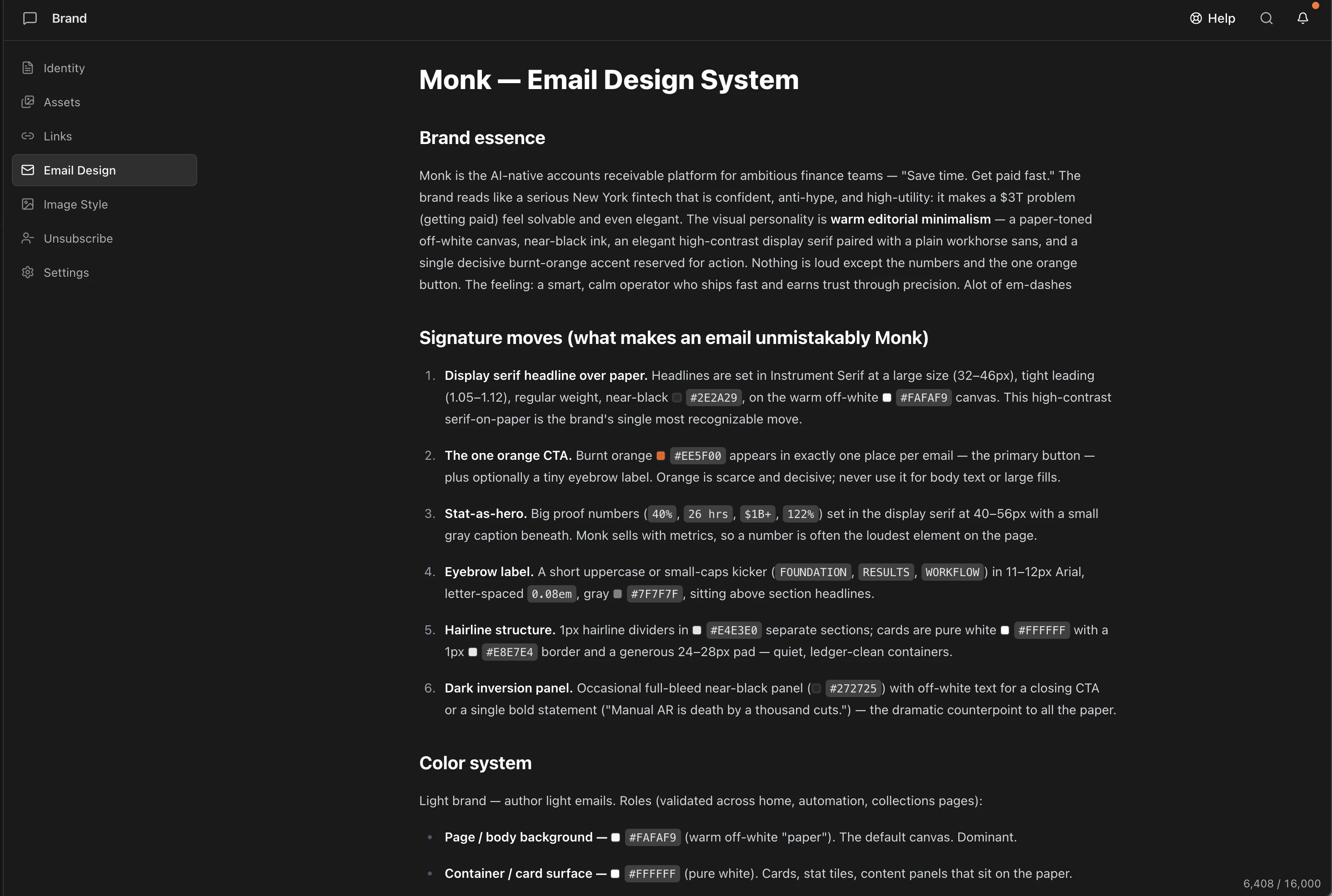
email-design.md is your email design system written as a document instead of a set of fields. Brew’s extraction agent reads your site the way a designer would. It studies colors, type, layout, and real screenshots, then writes up what it finds. It covers:
- Brand essence. A short description of your visual personality and what mood the brand is going for.
- Signature moves. The specific, repeatable details that make an email recognizably yours: an eyebrow label style, a divider treatment, how CTAs are shaped. This is the part a color palette alone can’t capture.
- Color system. Every color Brew uses, with the role each one plays (accent, ink, muted text, surface, hairline). Not just a swatch.
- Typography. Heading and body fonts, weights, and the web-safe fallback stack Brew uses for inboxes that don’t support custom fonts.
- Voice and standing instructions. How your brand sounds (friendly, expert, witty, direct), plus rules Brew should follow on every generation: custom footer copy, formatting conventions, merge tags you always include. “Always use sentence case in subject lines. Never use exclamation points.” belongs here, written as plain lines in the document.
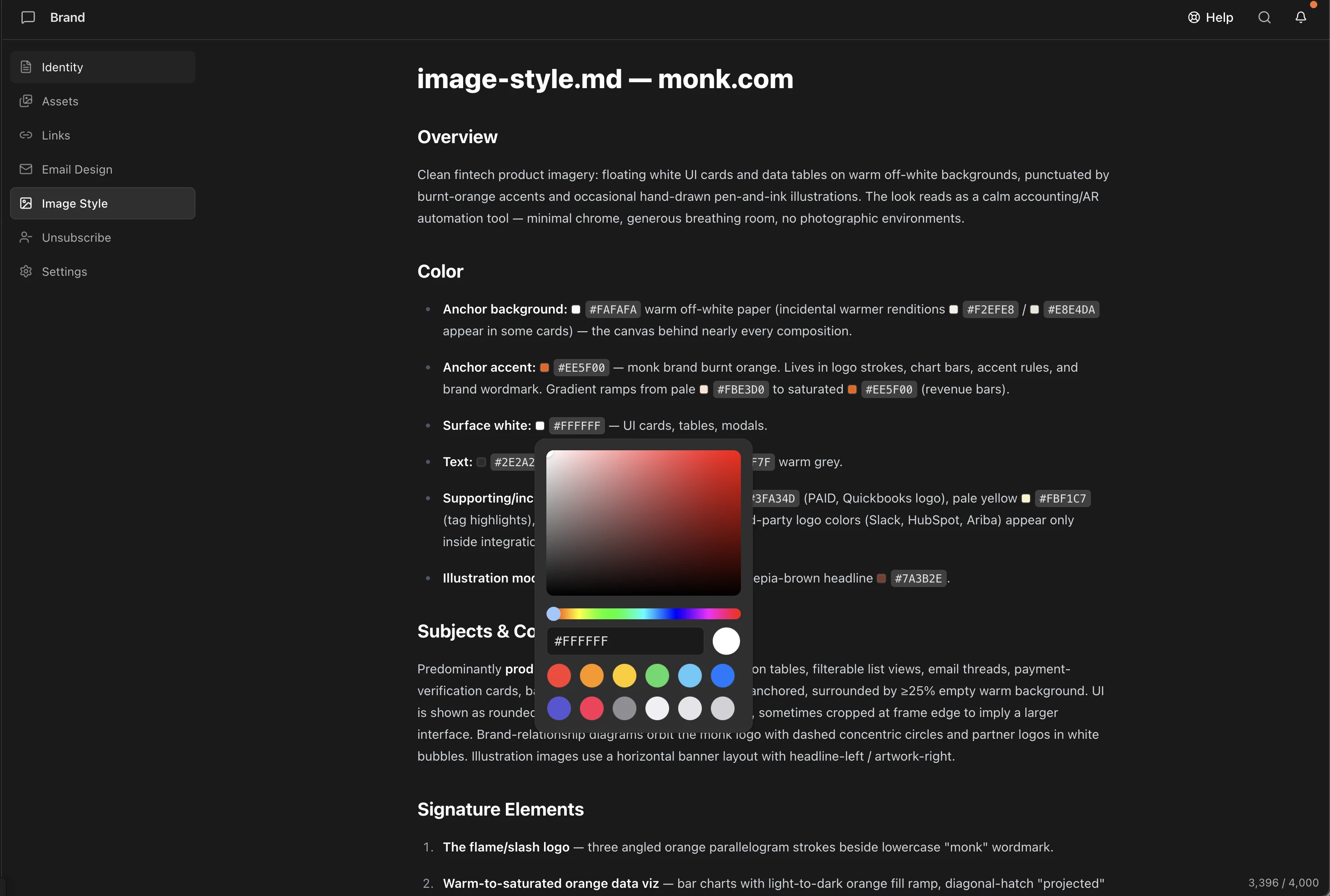
image-style.md art-directs any imagery Brew generates. It covers palette, subject and composition, signature visual elements, lighting and mood, and rendering style, plus a hard list of what to avoid. If your brand uses a consistent illustration style, mascot, or photographic treatment, this is where it’s defined. It’s separate from the logos and images on Assets, which Brew uses directly rather than as style guidance.
- email-design.md
- image-style.md
1. Let Extraction Write Them, Then Edit
When you add your brand, Brew writes both files from your site in about 30 seconds. If you upload a brand guide, PDF, or existing markdown during setup, your files win over anything inferred from the site. The domain only fills the gaps your uploads leave. Extraction is a starting point, not the final word. If your site doesn’t reflect your brand accurately, edit the documents directly and your edits stand.2. Start from an Email You Like
If an email already nails the look you want, you can make it the baseline without writing a spec yourself. That includes one Brew generated, a template you remixed, an import, or an email you forwarded in.1
Add the email to chat
Open the email on the canvas and click Add to chat in the toolbar. This brings that specific design into the conversation.
2
Ask Brew to make it the baseline
“Make this the default layout for our emails, and update the brand design to reflect it.”Brew studies the email’s structure, spacing, and signature details, then rewrites
email-design.md to match. Your colors, fonts, and voice stay yours; the layout patterns come from the email.3
Review what changed
Open Brand, go to the Email-design.md tab, and read the updated document. It’s the source of truth. If Brew captured a pattern you don’t want, delete that line and it’s gone from every future generation.
The baseline is a design guide, not a template. Brew learns the patterns and applies them to new content; it doesn’t copy the email.
3. Scope a Baseline to One Email Type
Your newsletter and your product announcements probably shouldn’t share a layout. You can point a specific email type at its own reference instead of changing the global baseline. With the email added to chat:“Whenever I ask for a newsletter, base its design on this email.”Brew records the scoped preference in your brand spec. Newsletter prompts then start from that layout, while everything else keeps following the global baseline. Repeat with a different email for product updates, digests, or any other type you send regularly.
Keep It Current
The files are the single source of truth, so maintenance is editing text:- A pattern stopped working? Delete or rewrite its line in
email-design.md. - Generated images drifting off-style? The fix lives in
image-style.md, including its “do not” list. - Rebranded? Delete the existing brand and add it again from the brand switcher. Brew re-runs extraction against the current version of your site and writes fresh copies of both files. Or hand the new look to chat: add a redesigned email and ask for the update. Deletion is permanent and removes everything in the brand workspace; see Multiple Brands before you do it.
Related
Brand identity
The map of the Brand page: details, links, and the two design files.
Add your brand
How extraction works, and how to upload an existing brand guide during setup.
Need Help?
Our team is ready to support you at every step of your journey with Brew. Choose the option that works best for you:- Self-Service Tools
- Talk to Our Team
Search Documentation
Type in the “Ask any question” search bar at the top left to instantly find relevant documentation pages.
ChatGPT/Claude Integration
Click “Open in ChatGPT” at the top right of any page to explore it further with ChatGPT or Claude.