

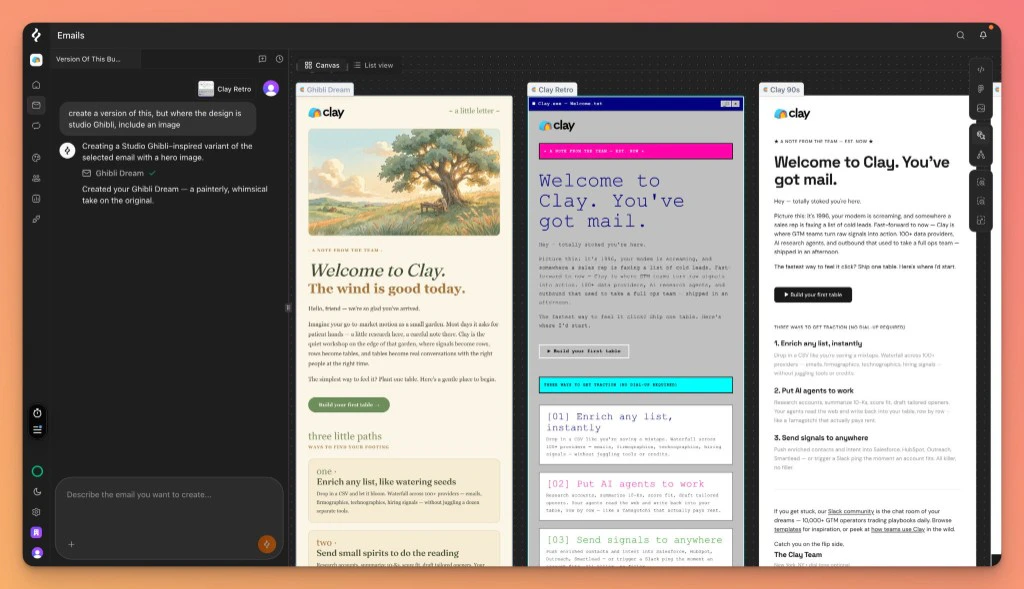
Prompt Patterns That Work
- Lead with the goal. “Announce our new analytics dashboard” is better than “Write a marketing email.”
- Name the audience. “For new SaaS trial users who haven’t booked a demo yet” gives Brew the context to pick the right tone.
- Specify length and structure. “3-email welcome flow” or “single email with one CTA and a testimonial” keeps Brew focused.
- Reference brand assets. Mention domains (“use the brand from acme.com”), Figma URLs, or attached images directly in the prompt.
- Iterate after generating. Don’t try to get everything in one prompt. Generate, review, and tell Brew what to change.
- Ask for personalization by name. “Open with a greeting that uses the contact’s first name and falls back to there” puts a real merge tag in the copy instead of a placeholder Brew invented.
Generate Multiple Emails at Once
A single prompt can produce several emails. They appear side-by-side on the canvas.- “Create three subject-line variations for this announcement.”
- “Generate two versions of this welcome email, one playful, one professional.”
- “Build a 5-email welcome series and lay them out on the canvas.”
Automation Prompt Patterns
Describe the trigger, timing, and outcome when you ask Brew to build an automation. These prompts cover common starting points: Welcome flow. Multi-step. Triggered when a new user signs up.
“Build a 3-step welcome flow triggered by user_signup. First email welcomes them and sets expectations. Second email sends a quick-start guide. Third email shares a customer success story.”
Abandoned cart. Multi-step. Triggered when a user adds to cart but does not check out.
“Build an abandoned-cart flow for cart_abandoned. First email: friendly reminder with the items. Second email 24 hours later: address common objections. Third email 48 hours later: limited-time discount.”
Order confirmation. Single-email automation. Triggered when an order is placed.
“Create an order confirmation email triggered by order_placed. Include the recipient’s first name, order number, items, total, and shipping ETA.”
A single-email automation like this respects unsubscribes when it sends from a marketing-purpose domain. For a message that must reach unsubscribed contacts, a password reset especially, point its send step at a domain with a transactional sending purpose. That’s Brew’s transactional email, with no unsubscribe footer.
Re-engagement. Multi-step. Triggered on a schedule for inactive contacts.
“Build a 3-step re-engagement flow. First email: ‘We miss you’ with new features. Second email three days later: ask what content they’d prefer. Third email: final chance to stay subscribed.”For the complete build, test, and publish workflow, see Build an Automation.
@-Mention Existing Work
In chat, type@ to reference an existing email or automation. Brew uses the mentioned item as context for the new request.
- “Match the tone of @welcome-email-v2 for this onboarding flow.”
- “Build an automation that fires after @abandoned-cart but for high-value customers.”
Attach Files and Links
Attach files directly to a prompt to give Brew exact assets to work with.- Images. Drag in product photos, hero shots, or screenshots. Brew uses them in the email or as style references.
- Figma URLs. Paste a Figma frame URL with
node-id. Brew converts the design to a responsive email. - HTML. Paste full HTML to remix an existing email into your brand.
Need Help?
Our team is ready to support you at every step of your journey with Brew. Choose the option that works best for you:- Self-Service Tools
- Talk to Our Team
Search Documentation
Type in the “Ask any question” search bar at the top left to instantly find relevant documentation pages.
ChatGPT/Claude Integration
Click “Open in ChatGPT” at the top right of any page to explore it further with ChatGPT or Claude.