

- The home page. A list of everything you’ve sent, with its headline numbers.
- Detail pages. Click any row for that item’s own page.
- Events. The log of every individual open, click, and bounce, behind every number on the other two layers.
get_analytics_overview and get_campaign_analytics over MCP read the same numbers, and /v1/analytics serves them to code.
Two Kinds of Rows
Everything in analytics is one of two things. The names come from the tabs at the top of the page:
The tab is called Audience rather than “Emails” because it covers both one-time shapes. A one-off Email and a manual-audience run both deliver once to a chosen audience. Their analytics read the same way.
That also means a manual-audience automation appears under Audience, not Automation, even though you built it in the automations builder. What you’re looking at is its one-time run.
The Analytics Home
The top of the page is the year at a glance. Sent, opened, and clicked totals with their rates cover the last 365 days, above a calendar heatmap of daily activity. A summary line counts your one-time sends and live Automations. Below that, the list:
A live Automation with no recent matches shows Awaiting activity instead of a trend. That’s your quickest signal a trigger has gone quiet.
Two controls narrow the list:
- All / Audience / Automation. The two kinds, or both together.
- The person filter. Only rows created by one teammate, or over the API.
Audience Detail
Click an Audience row for its page:- Sending identity. Domain, from name and address, reply-to, and preview text.
- All-time stats. Delivered, opened, and clicked with rates, charted over time.
- The dispatch record. How it went out (immediate, scheduled, or gradual), when it started, whether tracking was on, and its status.
- Recent events. The latest opens and clicks inline, with View all jumping to the full log.
- The email itself. Rendered alongside, so the numbers and the design that earned them share one screen.
Automation Detail
Click an Automation row for its page:- The header. Trigger and source, Live status, contacts active in the flow right now, and step count.
- Whole-flow stats. Delivered, opened, and clicked across the automation, charted over time.
- Email steps. Every email in the flow, in order, each with its own sent, opened, and clicked, plus unsubscribes where they happened. Select steps to focus the metrics.
- The flow diagram. Alongside the numbers. Run history (entered, completed, failed mid-flow) lives with the automation itself.
The Events Page
The pulse icon in the header of any detail page opens Events filtered to that item. “Which specific people opened this?” is one click from any number. Events is also where every email event across the brand lands, one row per thing that happened. The top of the page shows a tile per event type: delivered, opened, clicked, bounced, unsubscribed, and skipped. A chart of event volume over time sits below, color-coded to match. Skipped events carry the reason, such as unsubscribed or suppressed. The window controls in the top right set the range for the whole page:- Live. Streams events as they happen. Use it to watch an in-progress send land.
- 24h / 7d / 30d / 90d. Fixed windows.
- Custom. Pick any date range.
The Event Log
There are two ways to narrow the log:
- Filters. The chip row above the log filters by Automations, Emails, Email address, and Audience. Active filters show as highlighted chips you can remove individually, or clear all at once with Reset filters.
- Ask Brew. The search bar above the filters takes plain language. Describe what you’re looking for, like “welcome emails that bounced this week”, and Brew translates it into the matching filters.
Event Details
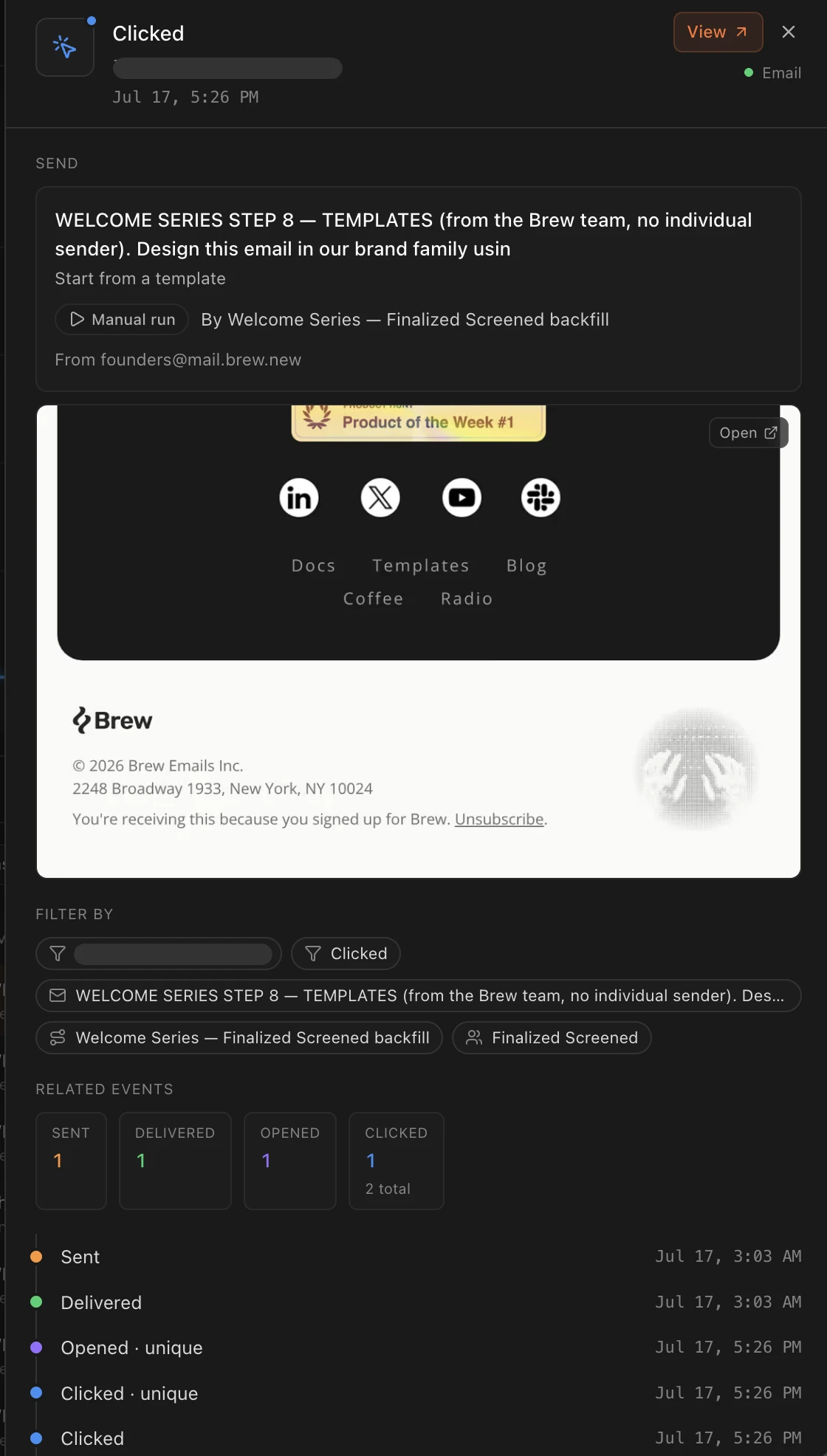
Click any row for the full story of that event:- The email itself. A rendered preview of what the recipient received, with a link to open it.
- Where it came from. The email or Automation that produced it, the From address, and a View run link that jumps to the automation run behind it.
- Filter by. One-click chips for the recipient, event type, email, automation, or audience. Each one pivots the log to everything matching, so you can go from one bounce to every event for that contact in a click.
- Related events. Sent, Delivered, Opened, and Clicked counts for that recipient and send, with a timeline underneath. Unique events are marked, and repeats are counted, so a recipient who clicked twice shows one unique click and two total.
- Details, metadata, and debug payload. The recipient and From address with copy buttons, plus collapsible Metadata and Debug Payload sections. For trigger-driven sends, the payload is the actual event data the integration delivered, which makes this the fastest way to debug a trigger.
Clicks Get Two Extras
For click events, the detail panel also shows:- Activity. The exact link the recipient clicked.
- Location. A map of where the click happened, down to city and country. Geographic data is available on click events only.
Where the Numbers Come From
Underneath both kinds of rows sits one record: the send, a single delivery of a design.- An Audience row wraps one send covering its whole blast.
- An Automation produces one send per recipient, each fired at its own moment.
- Each send accumulates events as it moves through the pipeline (sent → delivered → opened → clicked, plus bounces, complaints, and unsubscribes). Every event attaches to the send that produced it, so an open always traces back to the exact send and design the recipient received.
- Totals roll up from those events: lifetime on Audience rows, the last 14 days on Automation rows, and whatever window you pick on Events.
Asking Brew for Analysis
Beyond the search bar, you can ask Brew about your analytics from chat. “Which email had the highest CTR last month?” / “Show me everyone who clicked but didn’t open in the welcome flow.” Brew has access to your analytics data and can return summaries, comparisons, or contact-level details.Need Help?
Our team is ready to support you at every step of your journey with Brew. Choose the option that works best for you:- Self-Service Tools
- Talk to Our Team
Search Documentation
Type in the “Ask any question” search bar at the top left to instantly find relevant documentation pages.
ChatGPT/Claude Integration
Click “Open in ChatGPT” at the top right of any page to explore it further with ChatGPT or Claude.