

Two Ways to Set This Up
- Email client setup (easy)
- BIMI (advanced)
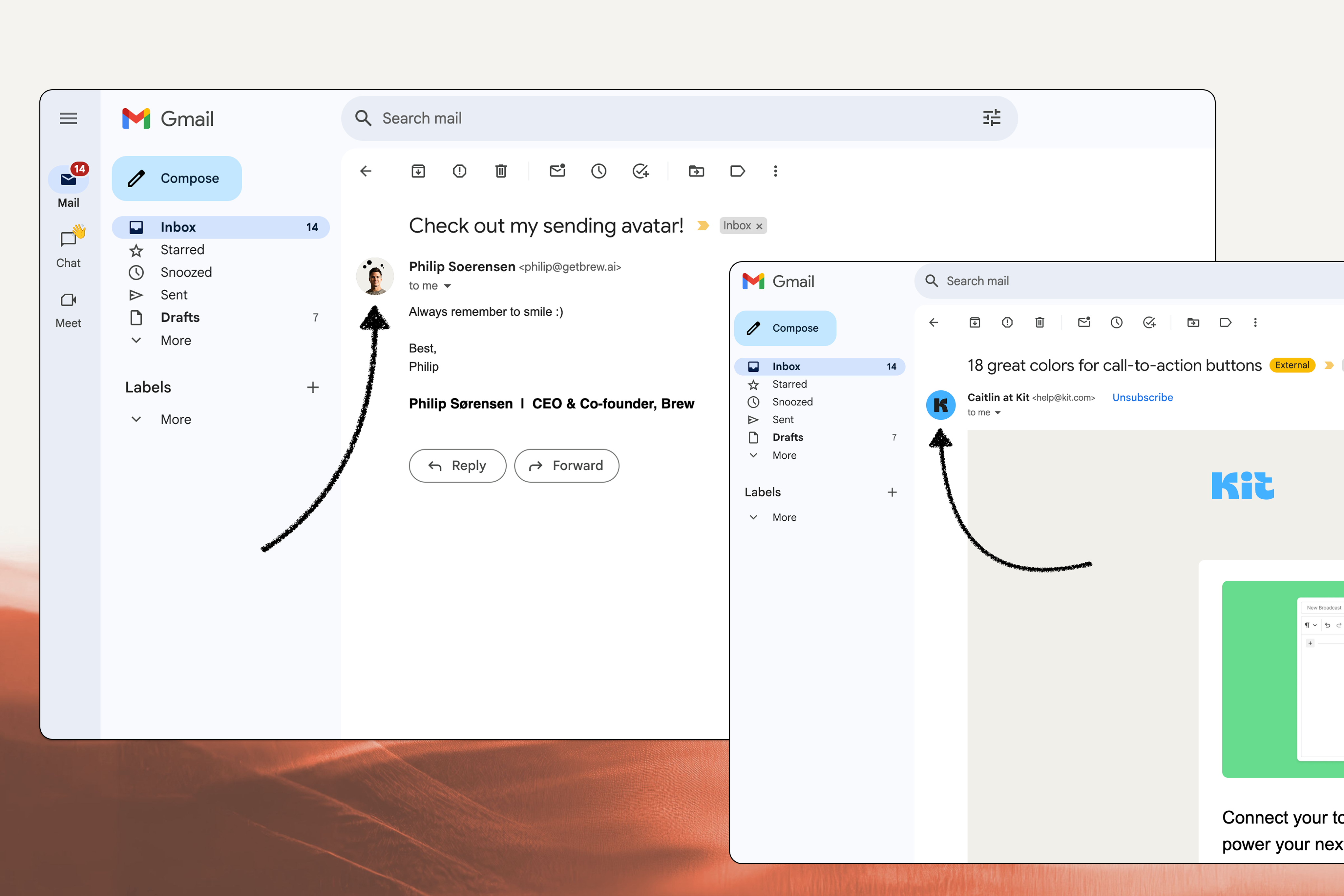
Add icons to individual email providers via your account profile. Supports both company logos and personal photos.
Gmail
Gmail
- Sign in to the Google account associated with your sending address
- Click your profile icon in the top right
- Click “Manage your Google Account”
- Open Personal info in the left menu
- Under Profile, click your profile picture
- Upload your logo or photo
- Set as profile photo
Gmail displays icons in the mobile app (including push notifications) and inside opened emails
on desktop. The desktop inbox list doesn’t show them.
Apple Mail
Apple Mail
Apple Branded Mail lets you display your logo as an avatar in Apple Mail inboxes on supported devices (iOS, iPadOS, macOS).
Apple Branded Mail only works in Apple Mail on recent iOS, iPadOS, and macOS versions. It won’t show in other clients or older Apple Mail versions.
1
Prerequisites
- Create an Apple Business Connect account (sign up)
- Make sure your DNS records are set up. Apple Branded Mail requires DMARC, which you’ve already configured if you completed Brew onboarding
- Have a company identification number for Apple to verify your business
2
Configure DMARC at enforcement
- You may need to update your DMARC policy to
p=quarantine;orp=reject;andpct=100 - Example:
v=DMARC1; p=quarantine; pct=100; rua=mailto:dmarcreports@example.com
3
Add your company and brand details
- Enter your company address, name, and required details in Business Connect
- Select Branded Mail in the sidebar
- Add your brand name and website
4
Upload your logo
- Apple requires a logo at least 1024 × 1024 px in
.png,.heif, or.jpeg
5
Add your domain(s)
- Specify the domains or addresses where your logo should appear
- You can register your logo for the root domain or a subdomain, if you don’t set a specific subdomain logo, the root one is used
- See domain verification for guidance on choosing root vs subdomain
6
Verify your company
- Provide your company identification number (e.g., Federal Taxpayer ID in the US)
- Apple will ask you to add a DNS record to verify domain ownership
7
Apple review and activation
- Review takes up to seven business days
- Once approved, your logo appears in Apple Mail for supported recipients
Apple Branded Mail works only with commercial domains (not gmail.com, etc.). It requires the
DNS records you set up in domain verification.
Outlook
Outlook
- Sign in to your Outlook account
- Click your profile icon in the top right
- Select My profile or View account
- Click Edit profile
- Upload your logo or photo
- Save
Outlook primarily displays icons in the mobile app and inside opened emails on desktop.
Yahoo
Yahoo
- Sign in to your Yahoo account
- Click your profile icon
- Select Account info
- Open Personal info
- Click your profile image
- Upload your logo or photo
- Save
Yahoo Mail shows icons in both the message list and message view.
Gravatar
Gravatar
Gravatar is used by clients like Thunderbird, Airmail, and Postbox.
- Go to Gravatar.com
- Create an account or sign in
- Add your brand logo or photo
- Verify the email addresses you send from
- Your icon now displays in clients that use Gravatar
Check It Worked
The setup tools only confirm configuration. The BIMI Generator validates your DNS record, and Apple’s review confirms your business. Neither shows you what a recipient sees. To check that, send a test email to your own address at each provider you configured, then look on mobile. Gmail and Outlook show icons in their mobile apps and inside opened messages on desktop. Desktop inbox lists don’t show them. That’s why a desktop-only check can look like a failure when the setup is fine. Inbox previews will not answer this one. They screenshot the message body across clients, and the sender avatar lives outside it. Use a test send instead. If your logo is missing, work through it in this order:- Wait. DNS changes take 24-48 hours to propagate, and providers may take longer to display a logo.
- Check the client. Outlook and other Microsoft clients do not support BIMI at all, and Apple Branded Mail only appears in recent versions of Apple Mail.
- Check DMARC enforcement. BIMI needs
p=quarantineorp=rejectwithpct=100. A policy ofp=nonepasses domain verification but not BIMI. - Check the domain you registered. A logo registered on the root domain and a send from a subdomain (or the reverse) will not match.
Use Both
The two approaches stack rather than compete. BIMI covers the clients that support it with one setup. Per-client profiles cover the rest, and Apple Branded Mail handles Apple Mail specifically. Best results come from setting up all three.Need Help?
Our team is ready to support you at every step of your journey with Brew. Choose the option that works best for you:- Self-Service Tools
- Talk to Our Team
Search Documentation
Type in the “Ask any question” search bar at the top left to instantly find relevant documentation pages.
ChatGPT/Claude Integration
Click “Open in ChatGPT” at the top right of any page to explore it further with ChatGPT or Claude.