

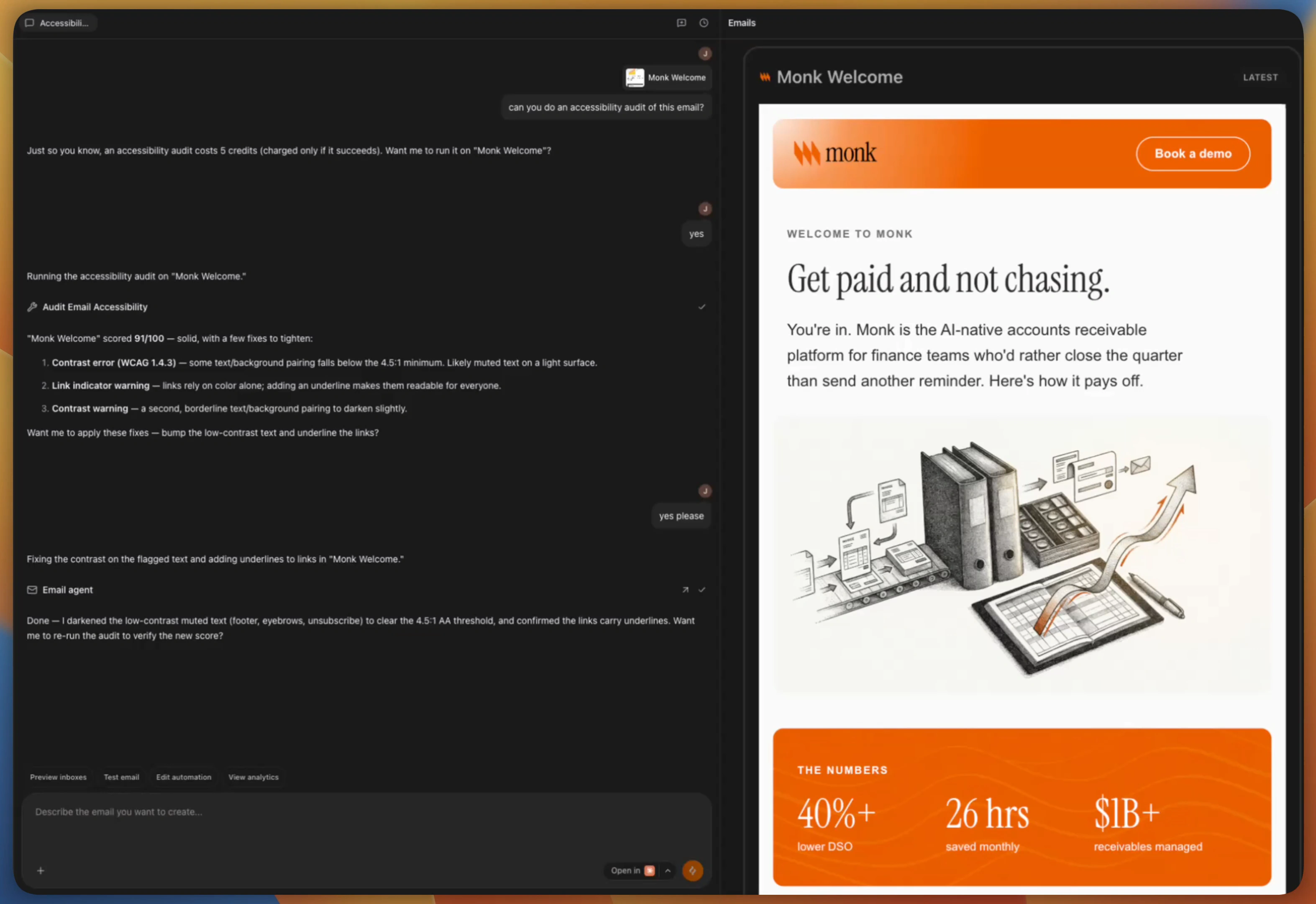
Run an Audit in the App
1
Add the email to chat
Open the email you want to check and click Add to chat, so the audit
runs against that design.
2
Ask for an audit
Prompt the chat:
“Can you do an accessibility audit of this email?”Brew confirms the credit cost first, then runs the audit and replies with the score and each issue it found, like a text and background pairing below the 4.5:1 contrast minimum, or links that rely on color alone.
3
Let Brew apply the fixes
Say yes when Brew offers to fix what it found. It darkens low-contrast
text, underlines links, and fills in the other flagged issues, then you
can re-run the audit to verify the new score.
An audit costs a fixed 5 credits and is charged only when it completes.
From MCP
If Brew is connected to your AI client, audits run from any chat. Reference the email and ask:“Audit the welcome email for accessibility.”The agent calls
audit_email_accessibility and replies with the score, summary, and issue list, and it can apply the fixes in the same conversation.
From the API
The same audit is available atPOST /v1/emails/{emailId}/accessibility-audit and as brew.emails.auditAccessibility(...) in the TypeScript SDK. If the audit can’t complete you get a retryable 503 and are not billed. See Credits for how metering works.
When to Run It
Make the audit part of your pre-send routine rather than a one-off. The QA an Email Before a Big Send recipe slots it between the inbox preview and the final send checks: preview across clients to catch rendering breaks, audit to catch accessibility issues, then send yourself a test. Accessibility fixes also tend to help everyone, not just readers using assistive tech. Higher contrast survives dark mode and sunlight, underlined links survive colorblindness and grayscale printing, and real alt text is what shows while images are still loading or blocked.Need help?
Our team is ready to support you at every step of your journey with Brew. Choose the option that works best for you:- Self-Service Tools
- Talk to Our Team
Search Documentation
Type in the “Ask any question” search bar at the top left to instantly find relevant documentation pages.
ChatGPT/Claude Integration
Click “Open in ChatGPT” at the top right of any page to analyze documentation with ChatGPT or Claude for deeper insights.