

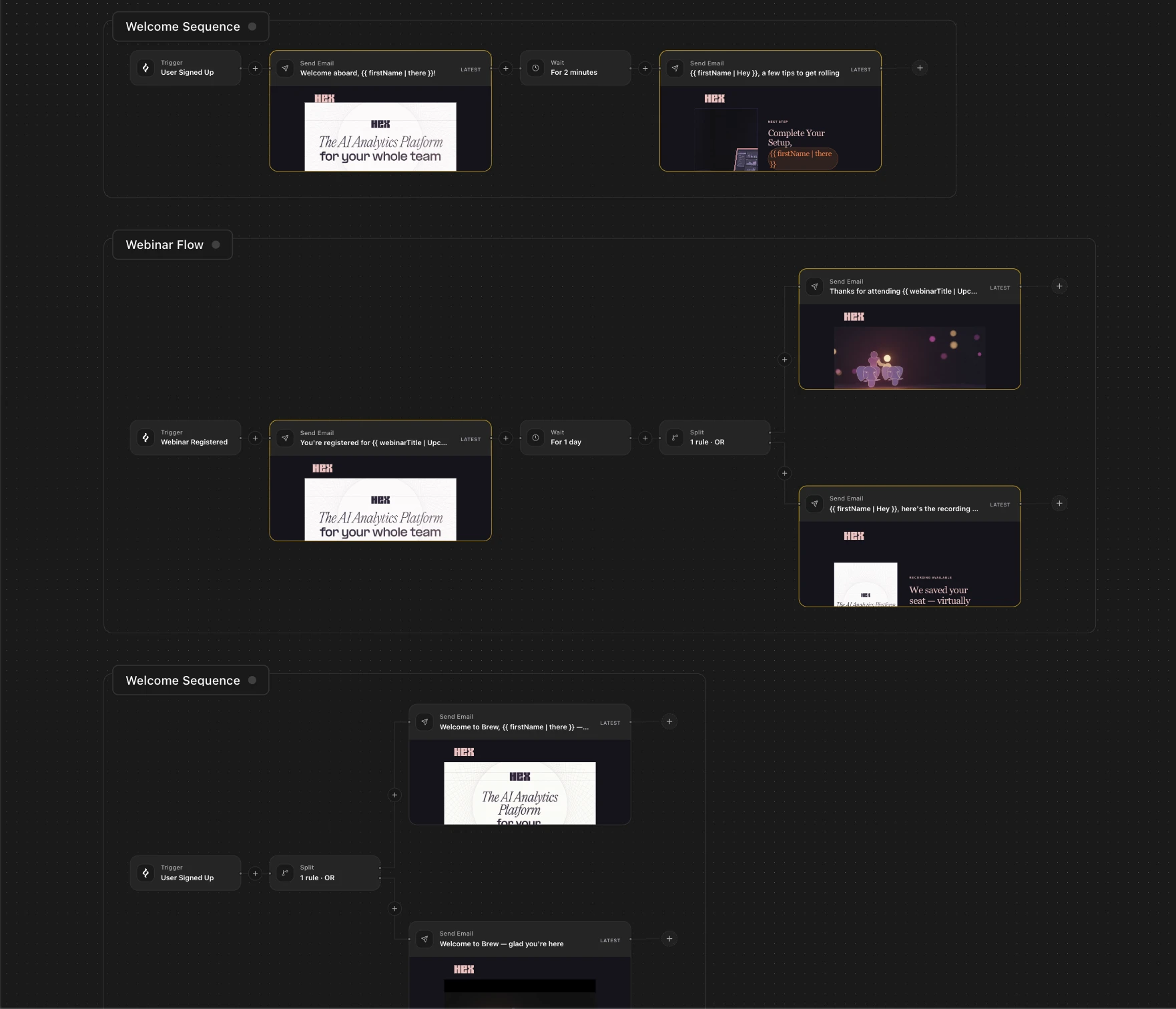
 Automations are emails Brew sends in response to events in your business, such as a signup, purchase, or payment failure. This page is the reference for the automation builder and the data it uses.
For the difference between one-off Emails and Automations, see Emails vs Automations. To create and publish a flow, follow Build an Automation.
Automations are emails Brew sends in response to events in your business, such as a signup, purchase, or payment failure. This page is the reference for the automation builder and the data it uses.
For the difference between one-off Emails and Automations, see Emails vs Automations. To create and publish a flow, follow Build an Automation.
The Automations List
The Automations list shows every automation with its status and trigger, plus counts for total, live, and draft flows. Search automations, manage trigger events with Triggers, or start a flow with New automation. Click an automation to open its dedicated canvas. The canvas always shows the flow selected from the list. Here the container is the automation itself, the same list-then-canvas pattern Emails use with groups; see Canvases.The Four Node Types
Every flow has a trigger and four node types. Send Email. Sends an email to the contact moving through the flow. The node can generate a new email or reference an email design from another flow. Each contact that reaches a Send Email node produces one send with its own delivery and engagement events. Those sends appear in analytics alongside one-off sends. Personalize with contact properties such as{{ firstName }} or trigger values such as {{ orderId }}.
Wait. Pauses the flow before the next node. Choose a preset duration, such as 1 hour, 1 day, 3 days, or 1 week, or enter a custom value.
Filter. Continues a contact only when a condition matches. Conditions can use contact properties, behavior such as opening a previous email, or trigger payload data. contact.plan reads the contact’s saved plan field, and a bare name such as orderId reads the trigger payload.
Split. Creates two paths so contacts receive different experiences. Split on a condition, often whether they clicked an earlier email. Or split by percentage (mode: percentage with leftPercentage): a set share of contacts goes down each path, for example 50/50 to compare two versions.
Emails Used in an Automation
An email in the email canvas can be the email a Send Email node sends. When it is, Brew marks it in the canvas: the email’s header shows a small automation icon in the top right corner, with a count of how many automations use it. Click the icon to see which ones. The popup lists each automation that sends this email, with its state (Draft or Live) and the email version that automation is pinned to. Select a row to open that automation’s canvas. The icon appears for draft and published automations alike, so an email can be linked before the flow ever goes live.Triggers
Every automation has a trigger. The trigger picker offers connected-source events, custom HTTP triggers, a contact unsubscribing, and manual audiences. Common trigger moments include new user signup, order placed, trial ending, payment failed, cart abandoned, and subscription canceled.Changing the Trigger
Click the trigger node to open its config panel. Use Change trigger to select another audience or event without rebuilding the rest of the flow.Manual Audience
A manual-audience automation runs a saved audience through the graph on demand. Its trigger shows the audience, filter query, and contact count. Runs show Sending while in flight and Sent when complete. Manual-audience automations are one-off flows. Choose Run now, Schedule, or Gradual send when launching one. See Send Options for details. The API and MCP also support manual-audience runs, including dry-runs. While a run is in flight, an agent or your code can control it:- Pause stops it at the next step. Emails already going out may finish.
- Resume continues delivery. It also retries a failed run from its first undelivered step, skipping steps that already completed.
- Cancel stops the remaining steps for good. Emails already delivered stay sent.
pause_audience_run, resume_audience_run, and cancel_audience_run.
Lifecycle States
Each save or edit creates a version, shown in the canvas header as a version chip such as
v4.
Editing a Live automation saves a new draft version, and the published version keeps serving until you publish again. Over the API, that update returns a DRAFT_SAVED_NOT_LIVE warning, and liveVersion names the version that is serving.
Unpublishing keeps history and returns a live flow to Draft. New people stop entering, and anyone already partway through still finishes.
Pausing holds a live flow’s sends, for everyone, until you resume it. To pause a manual-audience automation, pause its run instead.
A pause has a limited window. When it closes, Brew sends you a notification, and events that arrive after that are skipped instead of starting a run. Resume before then if you want new contacts to enter the flow.
Personalization
Merge tags pull contact properties ({{ firstName }}), custom properties ({{ plan }}), and trigger payload fields ({{ orderId }}) into email content. Merge Tags owns the full syntax, the fallback form, and the rules for what resolves.
Trigger Events
Trigger events are signals that start automations.- Custom HTTP triggers. Events you define and fire from your backend.
- Built-in events. Discovered from connected sources such as Stripe billing events.
- Unsubscribe events. Brew starts these itself when a contact unsubscribes.
Custom Events
A custom event is one you define and fire from your own backend. It has a name and a payload schema, and Brew checks every fire against it before starting any automation. A missing required field or a wrong type fails the fire. Undeclared keys depend on the enforcement mode of the trigger’s stored contract:- Off, the default, accepts them and reports a warning.
- Prune drops them before the run.
- Strict refuses the fire.
user_signup, order_placed, or subscription_renewed.
Schemas list the fields the event sends, each typed as string, int, boolean, object, or array, with required fields marked. A stored contract adds float, date, and enum. A flat payload, like the one in Build an Automation, keeps merge tags short.
A field can also be an object. Declare the nesting and each leaf is addressable by its dotted path, so this schema gives you {{ user.email }} and {{ order.id }}:
email field:
- Top-level fields are saved.
firstName,lastName, andsubscribedfill the contact’s own fields. Other declared top-level fields become custom properties. - Objects and lists aren’t saved. A field like
orderstays available to the email as{{ order.id }}, but it’s not stored on the contact. - Fallbacks aren’t saved. A fallback value fills the email only. A
subscribedfallback only sets a new contact’s subscription. - A value of the wrong type is skipped. Sending
"abc"for a number field leaves that field unchanged. The rest of the contact is saved, the automation still runs, and the response carries aFIELD_TYPE_MISMATCHwarning.
Connected-Source Events
Connecting a provider provisions every event Brew supports for it. Most connections mint a webhook URL scoped to your brand, which you paste into the provider’s dashboard. Stripe registers its own. Brew signature-verifies every delivery and rejects tampered or replayed events before anything runs. For every verified event, Brew starts each Live automation whose trigger matches and upserts the contact into your audience with provider-namespaced custom fields (stripeSubscriptionStatus, clerkUserId, and so on) you can use in filters and merge tags. The integration’s Manage tab shows the catalogue and a Recent events stream.
Until the provider sends an event at least once, Brew can’t tell whether its webhook is set up. You can still publish an automation on it, with a TRIGGER_EVENT_NOT_RECEIVED warning, and it runs once the event arrives. To check, check_trigger over MCP or GET /v1/automations/triggers/{triggerEventId}/readiness returns delivery: received once Brew has seen the event, or never_received with the setup step to check.
An event fires emails only when a Live automation is wired to it. Unpublish the automation to stop new people from entering; anyone already in the flow still finishes. Pause it to hold every send, or disconnect the integration to stop every event.
See the Integrations overview for the full list. For the flows a store usually runs on these events, see Lifecycle Emails for E-Commerce. Brew only listens to connected sources. It does not charge customers, modify subscriptions, refund payments, mutate auth records, or change Shopify orders.
Unsubscribe Events
An automation can start when a contact unsubscribes, either through an email’s unsubscribe link or their mail app’s one-click button. Bounces, complaints, imports, and edits through the API never start one. The trigger picker lists it as When a contact unsubscribes, and Choose what they unsubscribe from sets the list it watches:- All emails. The contact unsubscribed from everything your brand sends.
- One marketing domain. Each marketing domain is listed by name. The contact left that domain’s list. An unsubscribe from all, clicked in one of that domain’s emails, starts it too, as long as the contact was still on the list.
{ email, unsubscribe: { scope, domain?, method, reasons, reasonText?, emailId?, emailTitle?, sendId?, at } }. Emails reference it through merge tags such as {{ unsubscribe.domain }} and {{ unsubscribe.reasonText }}.
A field marked ? can be absent, and its merge tag then renders blank. domain is missing when the link came from a transactional email. reasons is always there, empty when none was chosen, as after a one-click.
A test of the automation runs on Brew’s sample unsubscribe, and any payload fields you pass replace the sample’s.
Marketing email from the list the contact left never reaches them. Mail from another marketing domain reaches them only while they are still on that domain’s list. After an unsubscribe from all, no marketing domain does. Brew refuses to publish a flow none of whose emails could reach them.
From an agent, ensure_brew_event_trigger returns the brand’s trigger for a scope. The API, SDK, and CLI calls are in From an Agent or Code. To set up a flow on this trigger, see Start a Flow When Someone Unsubscribes.
What Happens When a Payload Fails Validation
- Response. A missing required field or a wrong type returns
400 INVALID_PAYLOAD, and no automation starts. - Field errors.
details.errors[]names every field that failed, each with afieldand acode:missing_required,invalid_type,unexpected_key,invalid_email, orpayload_not_object. - Retries. The same body fails the same way on retry. Fix the payload against the trigger’s
payloadSchema, then send the event again.
From an Agent or Code
- Fire a custom event.
POST /v1/automations/triggers/{triggerEventId}/fire. Build an Automation has the request and the error codes. - Get the brand’s trigger for a scope.
POST /v1/automations/triggers/brew-eventsfrom code,brew.automations.triggers.ensureBrewEvent()in the SDK, andbrew-cli automations triggers ensure-brew-eventin the CLI. - Read a trigger’s contract.
GET /v1/automations/triggers/{triggerEventId}returns itspayloadSchema, the shape the validation error checks against.
Need Help?
Our team is ready to support you at every step of your journey with Brew. Choose the option that works best for you:- Self-Service Tools
- Talk to Our Team
Search Documentation
Type in the “Ask any question” search bar at the top left to instantly find relevant documentation pages.
Ask ChatGPT or Claude
Click here to open the Copy page menu at the top of this page, then send the page to ChatGPT, Claude, or your editor.