> ## Documentation Index
> Fetch the complete documentation index at: https://docs.brew.new/llms.txt
> Use this file to discover all available pages before exploring further.
# Mailchimp
> Connect Mailchimp with one-click OAuth to export Brew emails as ready-to-use templates.
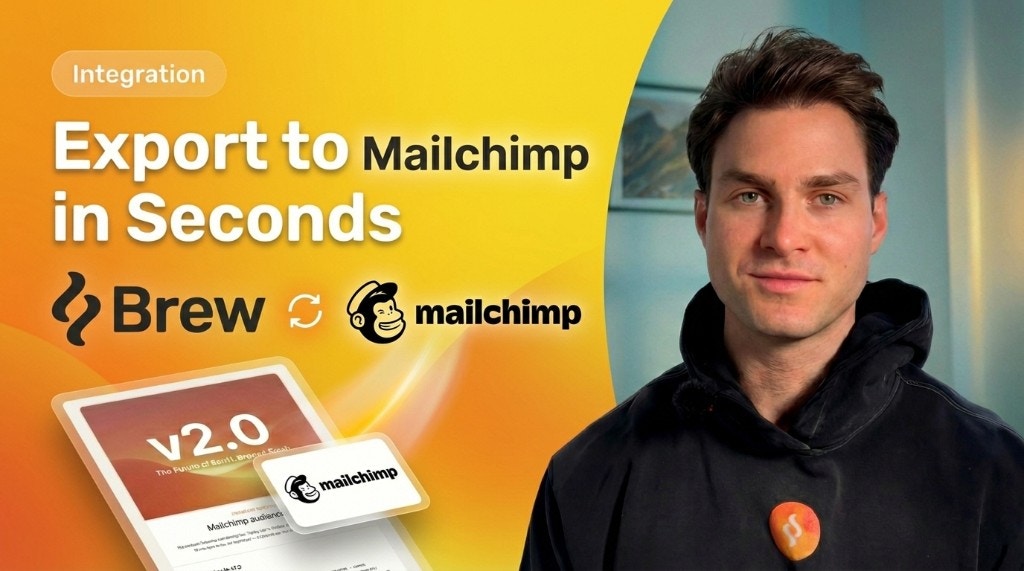
Connect your Mailchimp account to export emails created in Brew directly into Mailchimp as templates. No manual copy-pasting, design in Brew and export to Mailchimp in one click.
 ## Setup
In Brew, go to **Integrations** and click the **Mailchimp** card. You'll be redirected to Mailchimp to authorize the connection. Brew never sees your Mailchimp password or API keys.
That's it. Mailchimp is now connected to Brew.
## Exporting a Template
Once connected, export any email to Mailchimp:
1. Open an email you've created in Brew
2. Click **Send**
3. Choose **Export template** to Mailchimp
4. Give it a name and click **Export**
After exporting, the template appears in Mailchimp ready to use in campaigns and automations.
## What to Expect after Exporting
Exported templates appear in Mailchimp's **Templates** section and are ready to use in campaigns and automations.
**Template fidelity**. The email is exported 1:1 from Brew. All images and links are preserved exactly as designed.
**HTML-only editing**: Because Brew exports a fully custom HTML template, Mailchimp treats it as a code-based template. It won't be editable in Mailchimp's drag-and-drop block editor, only via the HTML code editor. Make design changes in Brew and re-export as needed.
## Requirements
* A Mailchimp account with admin access (needed to authorize OAuth)
## Setup
In Brew, go to **Integrations** and click the **Mailchimp** card. You'll be redirected to Mailchimp to authorize the connection. Brew never sees your Mailchimp password or API keys.
That's it. Mailchimp is now connected to Brew.
## Exporting a Template
Once connected, export any email to Mailchimp:
1. Open an email you've created in Brew
2. Click **Send**
3. Choose **Export template** to Mailchimp
4. Give it a name and click **Export**
After exporting, the template appears in Mailchimp ready to use in campaigns and automations.
## What to Expect after Exporting
Exported templates appear in Mailchimp's **Templates** section and are ready to use in campaigns and automations.
**Template fidelity**. The email is exported 1:1 from Brew. All images and links are preserved exactly as designed.
**HTML-only editing**: Because Brew exports a fully custom HTML template, Mailchimp treats it as a code-based template. It won't be editable in Mailchimp's drag-and-drop block editor, only via the HTML code editor. Make design changes in Brew and re-export as needed.
## Requirements
* A Mailchimp account with admin access (needed to authorize OAuth)