> ## Documentation Index
> Fetch the complete documentation index at: https://docs.brew.new/llms.txt
> Use this file to discover all available pages before exploring further.
# Send Options
> Four ways to time a send: right away, at a scheduled time, inside delivery windows, or ramped gradually to warm up a domain.
When you send an [Email](/create-emails/emails), the **When to send** step offers four options:
| Option | What it does | Reach for it when |
| -------------------- | ------------------------------------------------ | ------------------------------------------------------ |
| **Send now** | The email goes out right away. | The email is ready and timing doesn't matter. |
| **Schedule** | Sends automatically at a date and time you pick. | You know the exact moment you want. |
| **Intelligent send** | Delivers inside time windows you set. | You care more about when it lands than when it leaves. |
| **Gradual send** | Ramps daily volume over several days. | You're warming up a new or low-volume domain. |
Send now and Schedule work the way you'd expect. The two newer options have settings worth knowing about.
## Intelligent Send
Intelligent send delivers inside one or more time windows instead of at a single moment.
Pick a preset (Morning commute, Mid-morning, Lunch break, Early afternoon, Post-work, Evening) or set your own window with the timeline and time fields, for example 09:00 to 11:00. Click **Add window** to deliver across more than one window; recipients are spread across all the windows you set. If a window has already passed today, those recipients get the email tomorrow instead.
Windows follow the timezone in the **Times in** selector, so a 09:00 to 11:00 window in America/New York lands mid-morning for an East Coast audience no matter where you are when you hit send.
### Per-Recipient Intelligence
Intelligent send includes a **Per-recipient intelligence** toggle. Turn it on and Brew sends to each contact at their usual open time, based on their engagement history. Contacts without enough history use your windows, same as a regular intelligent send.
## Gradual Send
Gradual send ramps up daily volume instead of delivering to the whole audience at once. Use it to warm up a domain that is newly verified or has been sending at low volume. It works for your regular marketing and customer sends, so you don't need a dedicated warmup campaign to build reputation.
You control the ramp with four settings:
* **Start**: begin right away or pick a date and time for the ramp to start.
* **Starting volume**: how many emails go out on day one. Brew recommends 50.
* **Increment**: how much the daily volume grows. The recommended 1.25x grows volume 25% each day.
* **Safety threshold**: when Brew should pause the send. The recommended Balanced threshold pauses if bounces exceed 3% or complaints exceed 0.07%. You get an alert if sending pauses, so you can investigate before resuming.
As you adjust the settings, the **Daily send schedule** chart shows how many emails will go out each day.
Sending from a brand-new domain? [Verify it](/get-started/verify-your-sending-domain) first, then use gradual send for your first sends so the domain builds reputation cleanly.
## When You Launch an Automation
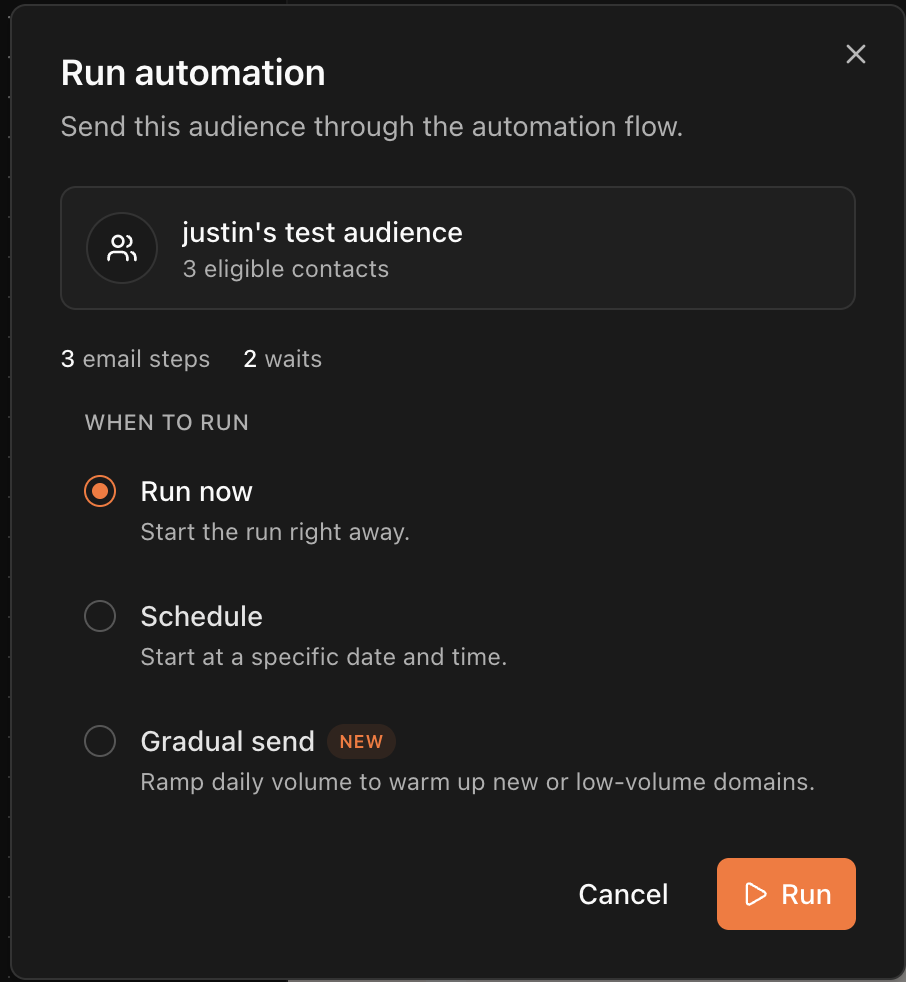
Launching a [manual-audience automation](/create-emails/automations#manual-audience) run goes through a similar picker with three options: **Run now**, **Schedule**, and **Gradual send**. Intelligent send isn't offered for automation runs; timing inside a flow comes from its Wait steps.
## Need help?
Our team is ready to support you at every step of your journey with Brew. Choose the option that works best for you:
Type in the "Ask any question" search bar at the top left to instantly find relevant documentation pages.
Click "Open in ChatGPT" at the top right of any page to analyze documentation with ChatGPT or Claude for deeper insights.
Book time with our founders for personalized guidance on strategy, best practices, or complex implementation questions.
Need immediate assistance? Reach us at **+1-(332)-203-2145** for urgent issues or time-sensitive questions.
Our preferred support channel. You'll receive an invite after signup for direct founder support and fast responses.
Contact us at **[support@brew.new](mailto:support@brew.new)** for detailed inquiries or if you prefer not to use Slack.
 ## Need help?
Our team is ready to support you at every step of your journey with Brew. Choose the option that works best for you:
## Need help?
Our team is ready to support you at every step of your journey with Brew. Choose the option that works best for you: