> ## Documentation Index
> Fetch the complete documentation index at: https://docs.brew.new/llms.txt
> Use this file to discover all available pages before exploring further.
# Preview in Real Inboxes
> Render a design across real email clients (Gmail, Outlook, Apple Mail, iOS, and Yahoo) and get a screenshot per client before you send.
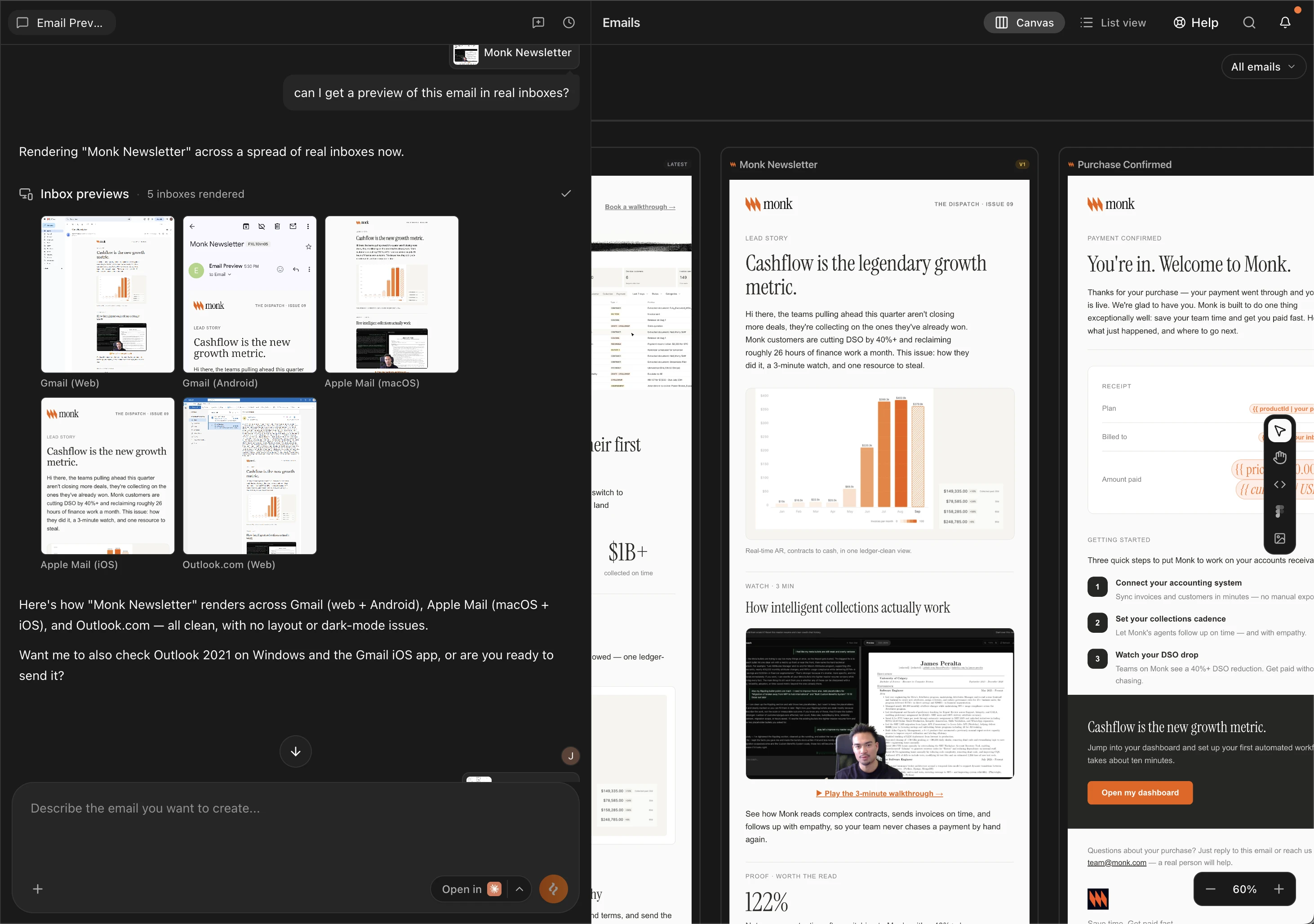 An email that looks perfect on the canvas can still break in a real inbox: Outlook mangles a table, dark mode inverts your logo, a mobile client squeezes a two-column layout. Brew renders your design across **real email clients and devices** and returns a screenshot per client, so you catch rendering issues before the send goes out.
This works for any design, one-off Emails and automation emails alike.
## Run a Preview
Open any email. In the **Preview** panel on the right, switch to the **Inboxes** tab.
Choose the default spread (Gmail, Outlook, Apple Mail, and iOS) or select specific clients, including OS, version, and light/dark mode combinations.
Screenshots come back per client. Clients that are slow to render show as **Pending**. Click **Retry** to fetch just those without re-running the rest.
Each preview run costs a fixed number of [credits](/api-reference/api/credits), charged only when at least one client actually renders. If nothing comes back, you aren't billed.
## Supported Clients
| Client | Variants |
| -------------- | --------------------------------------------------------------------------------- |
| **Gmail** | Web (light + dark), Android (light + dark), iOS |
| **Outlook** | Outlook 2021 on Windows (light + dark), Outlook 365 on Windows, Outlook.com (web) |
| **Apple Mail** | macOS (light + dark), iOS (light + dark) |
| **Yahoo Mail** | Web |
## What to Check
* **Outlook first.** Outlook on Windows uses its own rendering engine and is the most common place layouts break. Check tables, spacing, and background images there before anywhere else.
* **Dark mode.** iOS and Apple Mail dark variants show whether your colors invert gracefully. Watch for logos that vanish on dark backgrounds and text that loses contrast.
* **Mobile.** The iOS and Android variants confirm your layout stacks correctly on a narrow screen.
## Inbox Previews vs Test Sends
Both have a place in your pre-send routine:
* **Inbox previews** show how the design *renders* across many clients at once, no inbox accounts needed, results in one grid.
* **[Test sends](/create-emails/emails#sending)** deliver the real email to your own address, so you can check the from name, subject, preview text, and links as an actual recipient.
A good habit: preview across inboxes while you're still iterating on the design, then send yourself a test right before the real send.
## From the API
The same feature is available programmatically:
* **API**: `POST /v1/emails/{emailId}/client-previews`. Pass `clients` with ids from the supported catalogue, or an empty body for the default spread.
* **TypeScript SDK**: `brew.emails.previewClients(...)`
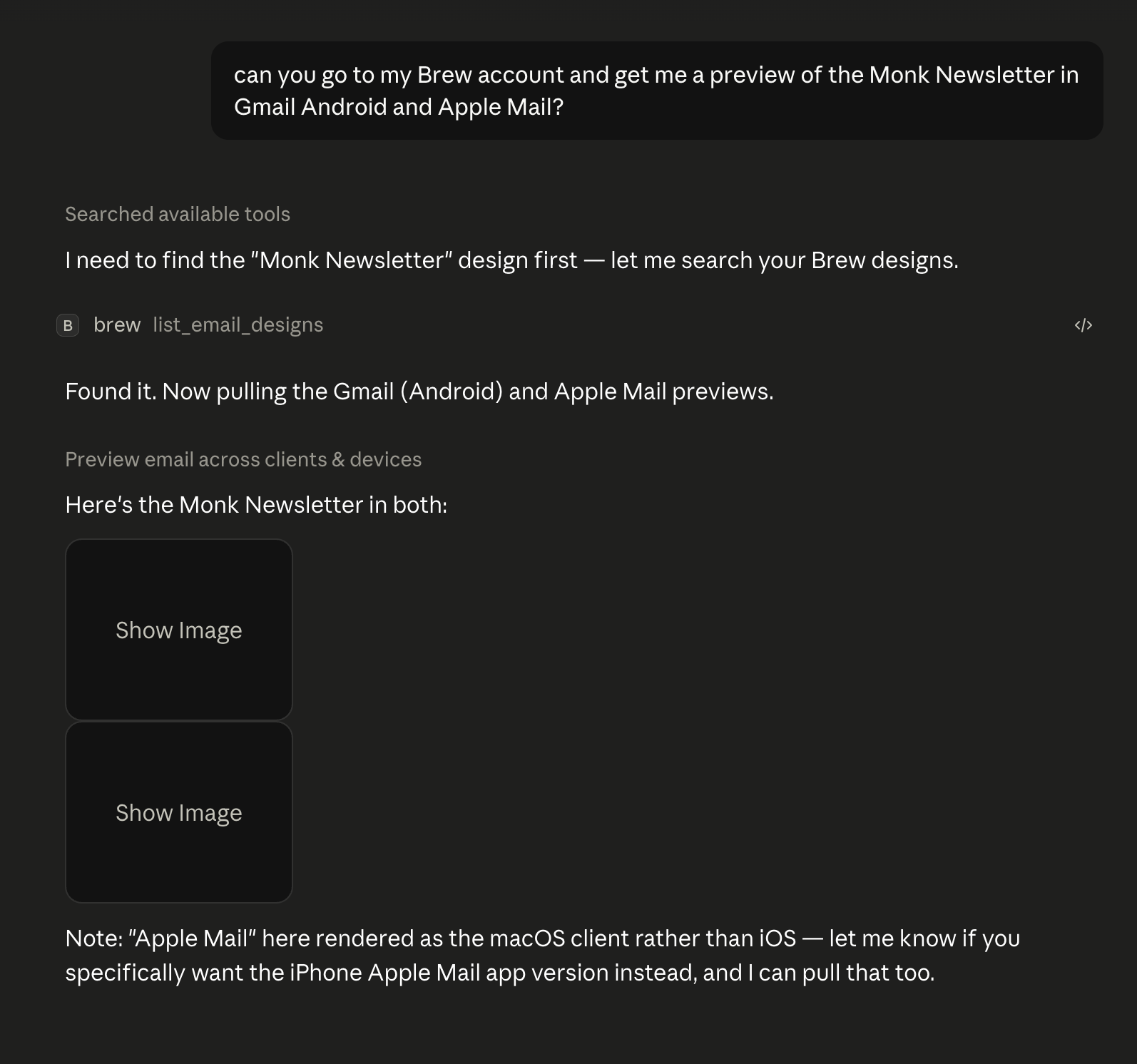
* **MCP**: the `preview_email_across_clients` tool, so agents can QA a design as part of a workflow. Ask for a preview in chat and the images come back inline; click any of them to open the full render in your browser.
An email that looks perfect on the canvas can still break in a real inbox: Outlook mangles a table, dark mode inverts your logo, a mobile client squeezes a two-column layout. Brew renders your design across **real email clients and devices** and returns a screenshot per client, so you catch rendering issues before the send goes out.
This works for any design, one-off Emails and automation emails alike.
## Run a Preview
Open any email. In the **Preview** panel on the right, switch to the **Inboxes** tab.
Choose the default spread (Gmail, Outlook, Apple Mail, and iOS) or select specific clients, including OS, version, and light/dark mode combinations.
Screenshots come back per client. Clients that are slow to render show as **Pending**. Click **Retry** to fetch just those without re-running the rest.
Each preview run costs a fixed number of [credits](/api-reference/api/credits), charged only when at least one client actually renders. If nothing comes back, you aren't billed.
## Supported Clients
| Client | Variants |
| -------------- | --------------------------------------------------------------------------------- |
| **Gmail** | Web (light + dark), Android (light + dark), iOS |
| **Outlook** | Outlook 2021 on Windows (light + dark), Outlook 365 on Windows, Outlook.com (web) |
| **Apple Mail** | macOS (light + dark), iOS (light + dark) |
| **Yahoo Mail** | Web |
## What to Check
* **Outlook first.** Outlook on Windows uses its own rendering engine and is the most common place layouts break. Check tables, spacing, and background images there before anywhere else.
* **Dark mode.** iOS and Apple Mail dark variants show whether your colors invert gracefully. Watch for logos that vanish on dark backgrounds and text that loses contrast.
* **Mobile.** The iOS and Android variants confirm your layout stacks correctly on a narrow screen.
## Inbox Previews vs Test Sends
Both have a place in your pre-send routine:
* **Inbox previews** show how the design *renders* across many clients at once, no inbox accounts needed, results in one grid.
* **[Test sends](/create-emails/emails#sending)** deliver the real email to your own address, so you can check the from name, subject, preview text, and links as an actual recipient.
A good habit: preview across inboxes while you're still iterating on the design, then send yourself a test right before the real send.
## From the API
The same feature is available programmatically:
* **API**: `POST /v1/emails/{emailId}/client-previews`. Pass `clients` with ids from the supported catalogue, or an empty body for the default spread.
* **TypeScript SDK**: `brew.emails.previewClients(...)`
* **MCP**: the `preview_email_across_clients` tool, so agents can QA a design as part of a workflow. Ask for a preview in chat and the images come back inline; click any of them to open the full render in your browser.
 See the [API Reference](/api-reference/api/api-introduction) for the full client catalogue and response shape.
## Need help?
Our team is ready to support you at every step of your journey with Brew. Choose the option that works best for you:
Type in the "Ask any question" search bar at the top left to instantly find relevant documentation pages.
Click "Open in ChatGPT" at the top right of any page to analyze documentation with ChatGPT or Claude for deeper insights.
Book time with our founders for personalized guidance on strategy, best practices, or complex implementation questions.
Need immediate assistance? Reach us at **+1-(332)-203-2145** for urgent issues or time-sensitive questions.
Our preferred support channel. You'll receive an invite after signup for direct founder support and fast responses.
Contact us at **[support@brew.new](mailto:support@brew.new)** for detailed inquiries or if you prefer not to use Slack.
See the [API Reference](/api-reference/api/api-introduction) for the full client catalogue and response shape.
## Need help?
Our team is ready to support you at every step of your journey with Brew. Choose the option that works best for you:
Type in the "Ask any question" search bar at the top left to instantly find relevant documentation pages.
Click "Open in ChatGPT" at the top right of any page to analyze documentation with ChatGPT or Claude for deeper insights.
Book time with our founders for personalized guidance on strategy, best practices, or complex implementation questions.
Need immediate assistance? Reach us at **+1-(332)-203-2145** for urgent issues or time-sensitive questions.
Our preferred support channel. You'll receive an invite after signup for direct founder support and fast responses.
Contact us at **[support@brew.new](mailto:support@brew.new)** for detailed inquiries or if you prefer not to use Slack.