> ## Documentation Index
> Fetch the complete documentation index at: https://docs.brew.new/llms.txt
> Use this file to discover all available pages before exploring further.
# Campaigns
> One-off emails you write, schedule, and send to an audience.
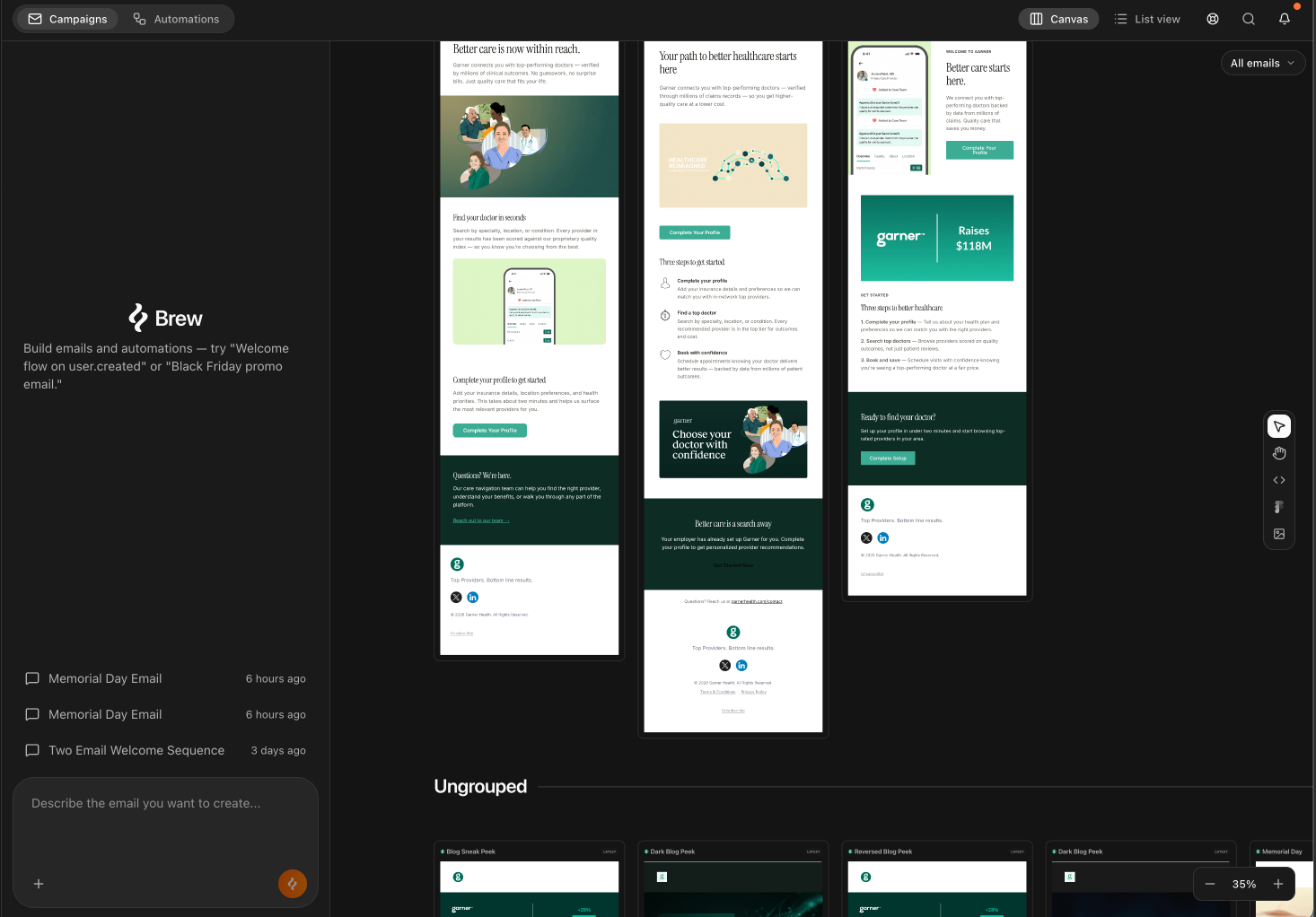
Campaigns in Brew are one-off sends — newsletters, product announcements, promotions, event invites. You write a prompt, Brew generates an on-brand email on the canvas, and you send it now or schedule it for later.
*One prompt → one or more emails sent at a chosen time.*
This is different from [Automations](/create-emails/automations), which send in response to events and run in the background automatically. Not sure which to use? See [Campaigns vs Automations](/create-emails/campaigns-vs-automations).
## Creating a campaign
Open **Home** and describe what you want in the chat. Be specific about the purpose, the audience, and the tone — the more detail you give, the better the first version.
Some examples:
* *"Write a product launch announcement for our new dashboard feature. Excited tone, one clear CTA to try it."*
* *"Create a Black Friday promo email with a product grid and a 24-hour countdown."*
* *"Draft a re-engagement email for customers who haven't logged in for 30 days."*
Brew generates the email on the canvas. From there you can edit it, send a test, create variants, or send it to an audience.
## Editing a generated campaign
Click any email on the canvas to select it. You have two ways to edit:
**Edit with AI (chat).** Use the chat panel for bigger changes:
* *"Make this more direct."*
* *"Add a second version for enterprise buyers."*
* *"Replace the hero with a product screenshot."*
Brew updates the selected email and saves a new version.
**Edit manually.** Click directly into the email to edit text, links, buttons, and images. Manual edits autosave and become part of the version history.
## Variants
Ask Brew for variants when you want options without losing the original:
* *"Create three subject-line variations for this email."*
* *"Make a more playful version of this welcome email."*
* *"Generate a B variant of this announcement with a different hero image."*
Variants appear as separate emails on the canvas. The original stays untouched.
## Sending
When the campaign is ready, click **Send** in the toolbar. You can:
* **Send now** — pick a saved audience, choose a verified domain, review sender details, and confirm.
* **Schedule** — set a date and time for the campaign to go out automatically.
Before sending, use **Test** to send a preview to yourself or a teammate so you can see exactly how it lands in the inbox.
## Exporting to another ESP
If you use HubSpot, Klaviyo, Mailchimp, or another ESP, click **Export template** from the canvas toolbar to push the finished email directly into your existing platform.
See [Integrations](/integrations/integrations) for the full list of supported platforms.
## Canvas view vs list view
Brew gives you two ways to look at your campaigns:
* **Canvas view.** Best for creating, comparing, and editing. Campaigns appear here after generation. You can see multiple versions side by side, click into any email, and edit or export from here.
* **List view.** Best for scanning and managing a larger library of campaigns. Shows campaigns in a compact table.
Most creation work happens on the canvas. Use list view when you want a faster operational view.
## Grouping campaigns
## Importing existing designs
Already have email designs? Bring them into Brew from the **Import** tools on the right side of the canvas:
| What you have | What to use | What Brew does |
| --------------------------------- | ------------------------ | ----------------------------------------------------------- |
| HTML from an existing email | Upload HTML | Imports it as an editable email on the canvas |
| A Figma design | Connect with Figma | Converts the frame into a responsive email |
| A screenshot or image of an email | Upload image to recreate | Recreates the structure and style as an editable Brew email |
You can also forward emails to `hello@email.brew.new`. Forwarded emails land in **Templates → Forwarded** and can be remixed into your brand.
## Need Help?
Our team is ready to support you at every step of your journey with Brew. Choose the option that works best for you:
Type in the "Ask any question" search bar at the top left to instantly find relevant documentation pages.
Click "Open in ChatGPT" at the top right of any page to analyze documentation with ChatGPT or Claude for deeper insights.
Book time with our founders for personalized guidance on strategy, best practices, or complex implementation questions.
Need immediate assistance? Reach us at **+1-(332)-203-2145** for urgent issues or time-sensitive questions.
Our preferred support channel. You'll receive an invite after signup for direct founder support and fast responses.
Contact us at **[support@brew.new](mailto:support@brew.new)** for detailed inquiries or if you prefer not to use Slack.