> ## Documentation Index
> Fetch the complete documentation index at: https://docs.brew.new/llms.txt
> Use this file to discover all available pages before exploring further.
# Unified Analytics
> Analytics is now one view: live stats and a time-series chart on top, a filterable log of every email event below, and full detail on any event in one click.
**July 2026** · Available on all plans.
## What Shipped
Analytics has been rebuilt as one view. The tabs are gone: instead of switching between per-email, per-automation, and per-event screens, everything your brand sends lands in a single page. The top half is the numbers, headline stats and a time-series chart for whatever window you pick. The bottom half is the record, a live log of every individual event with the tools to slice it.
 ## One Window for the Numbers
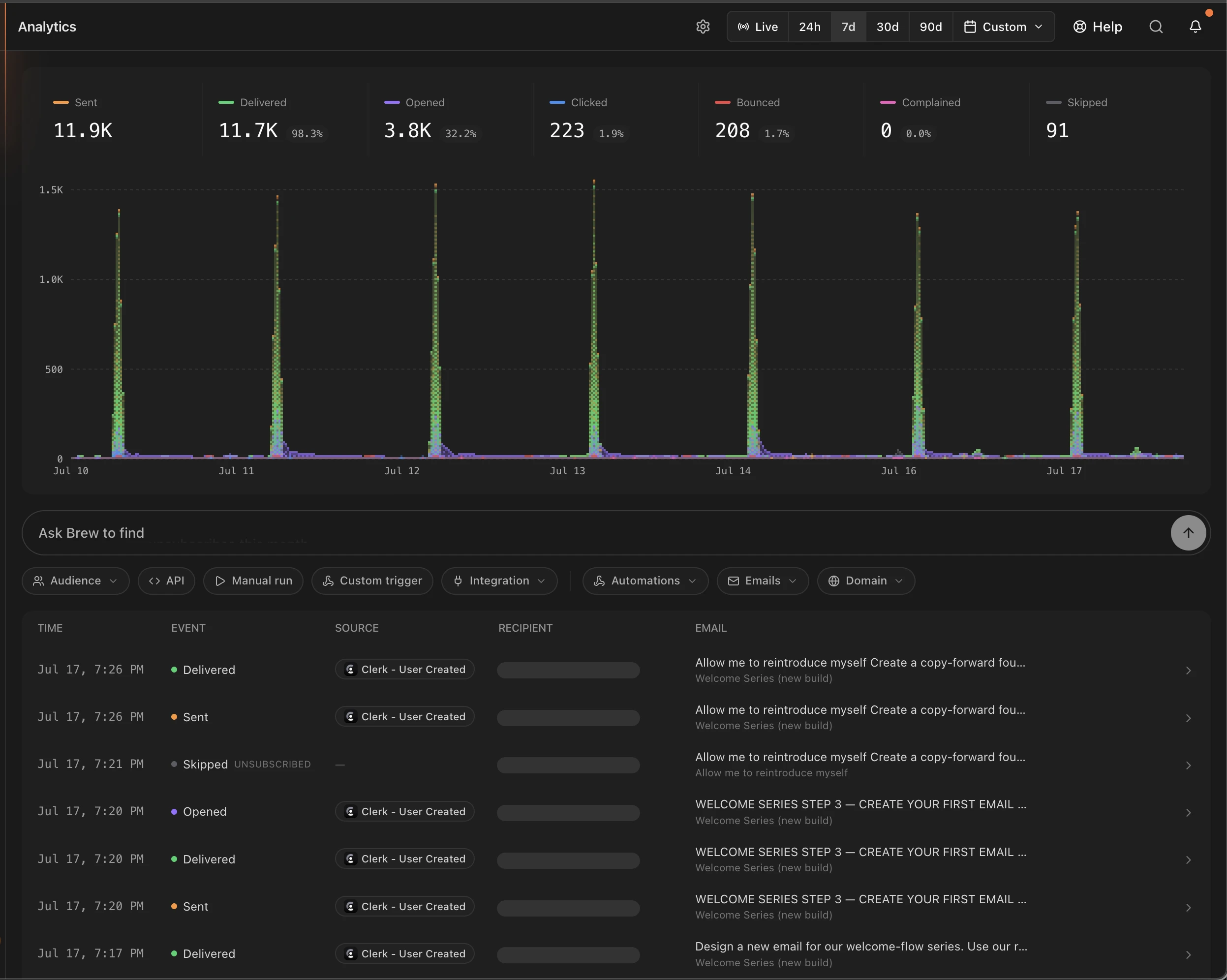
Seven headline stats sit above the chart: Sent, Delivered, Opened, Clicked, Bounced, Complained, and Skipped, each with its rate where one applies. Skipped is new as a first-class number, counting the contacts Brew deliberately didn't send to, unsubscribed or suppressed, with the reason logged.
The chart below plots event volume over time, color-coded to match the stats, so a send spike and the engagement tail that follows read as one picture. Every tile is also a filter: click **Clicked** and the chart and the log narrow to click events only. Time controls sit top right: **Live** streams events as they happen (watch a send land in real time), and fixed windows run 24h, 7d, 30d, and 90d, plus a custom range.
## One Window for the Numbers
Seven headline stats sit above the chart: Sent, Delivered, Opened, Clicked, Bounced, Complained, and Skipped, each with its rate where one applies. Skipped is new as a first-class number, counting the contacts Brew deliberately didn't send to, unsubscribed or suppressed, with the reason logged.
The chart below plots event volume over time, color-coded to match the stats, so a send spike and the engagement tail that follows read as one picture. Every tile is also a filter: click **Clicked** and the chart and the log narrow to click events only. Time controls sit top right: **Live** streams events as they happen (watch a send land in real time), and fixed windows run 24h, 7d, 30d, and 90d, plus a custom range.
 ## Every Event in One Log
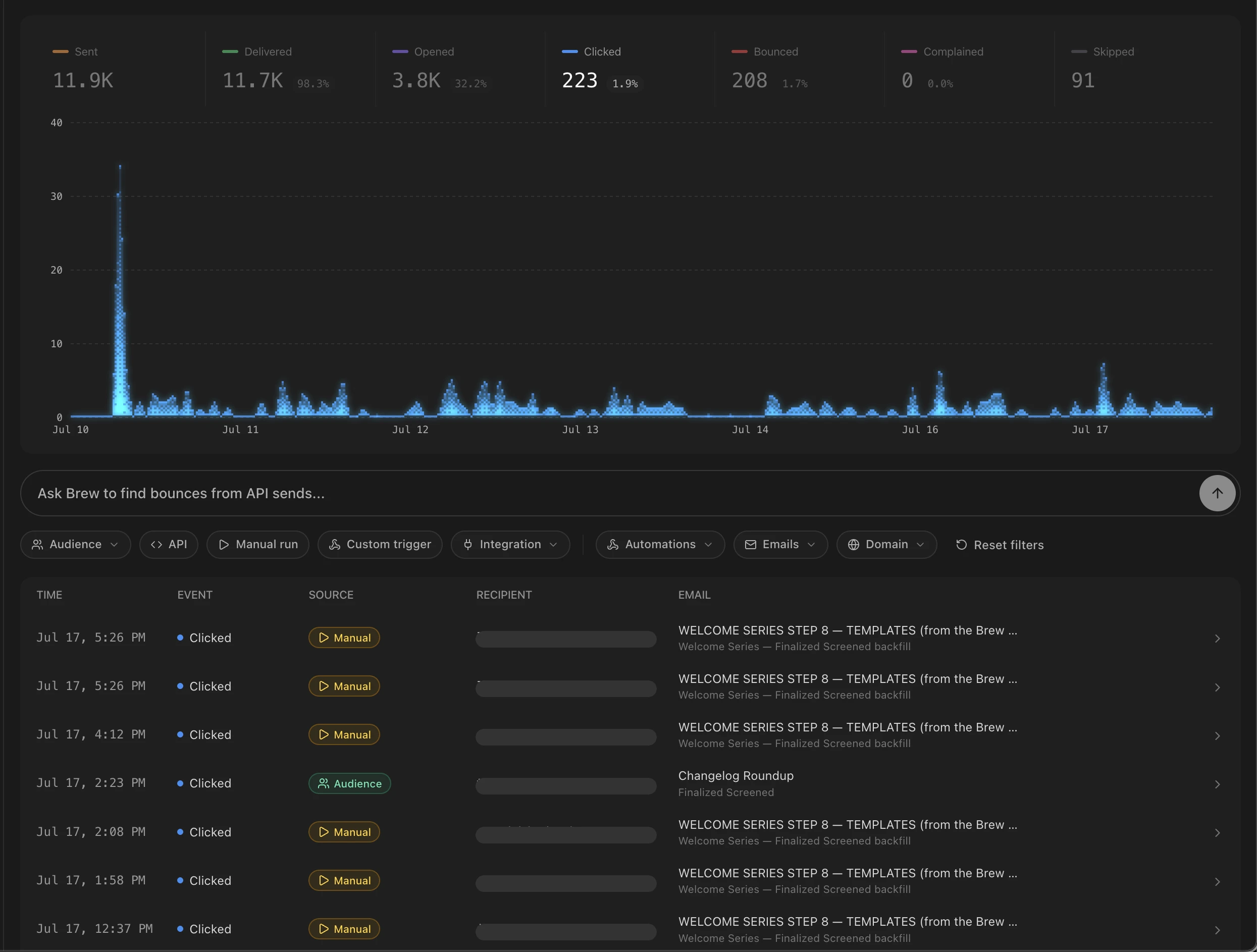
The bottom half is a single stream: sent, delivered, opened, clicked, bounced, complained, and skipped events across every one-off email, automation step, and transactional send. Each row shows when it happened, the event type, the recipient, the email it belongs to, and the **source**, the thing that caused the send, whether that's an integration trigger like Shopify - Order Created, an API call, a manual run, or a custom trigger.
There are two ways to narrow it. Filter chips cover Audience, API, Manual run, Custom trigger, Integration, Automations, Emails, and Domain, and stack until you reset them. Or skip the chips and ask: the search bar takes plain language, *"welcome emails that bounced this week"*, and Brew turns it into the matching filters.
## Click into Any Event
Every row opens into the full story:
* **The email itself**, rendered as the recipient received it, with a link to open it.
* **Where it came from**: the automation or integration behind the send, the From address, and a **View run** link to the exact automation run.
* **Filter by** chips that pivot the whole log to that recipient, event type, email, automation, or audience in one click.
* **Related events**: Sent, Delivered, Opened, and Clicked for that recipient and send, on a timeline that separates unique events from repeats.
* **Metadata and the debug payload**, copyable. For trigger-driven sends the payload is the actual event data the integration delivered, which makes the log the fastest way to debug a trigger.
## Every Event in One Log
The bottom half is a single stream: sent, delivered, opened, clicked, bounced, complained, and skipped events across every one-off email, automation step, and transactional send. Each row shows when it happened, the event type, the recipient, the email it belongs to, and the **source**, the thing that caused the send, whether that's an integration trigger like Shopify - Order Created, an API call, a manual run, or a custom trigger.
There are two ways to narrow it. Filter chips cover Audience, API, Manual run, Custom trigger, Integration, Automations, Emails, and Domain, and stack until you reset them. Or skip the chips and ask: the search bar takes plain language, *"welcome emails that bounced this week"*, and Brew turns it into the matching filters.
## Click into Any Event
Every row opens into the full story:
* **The email itself**, rendered as the recipient received it, with a link to open it.
* **Where it came from**: the automation or integration behind the send, the From address, and a **View run** link to the exact automation run.
* **Filter by** chips that pivot the whole log to that recipient, event type, email, automation, or audience in one click.
* **Related events**: Sent, Delivered, Opened, and Clicked for that recipient and send, on a timeline that separates unique events from repeats.
* **Metadata and the debug payload**, copyable. For trigger-driven sends the payload is the actual event data the integration delivered, which makes the log the fastest way to debug a trigger.
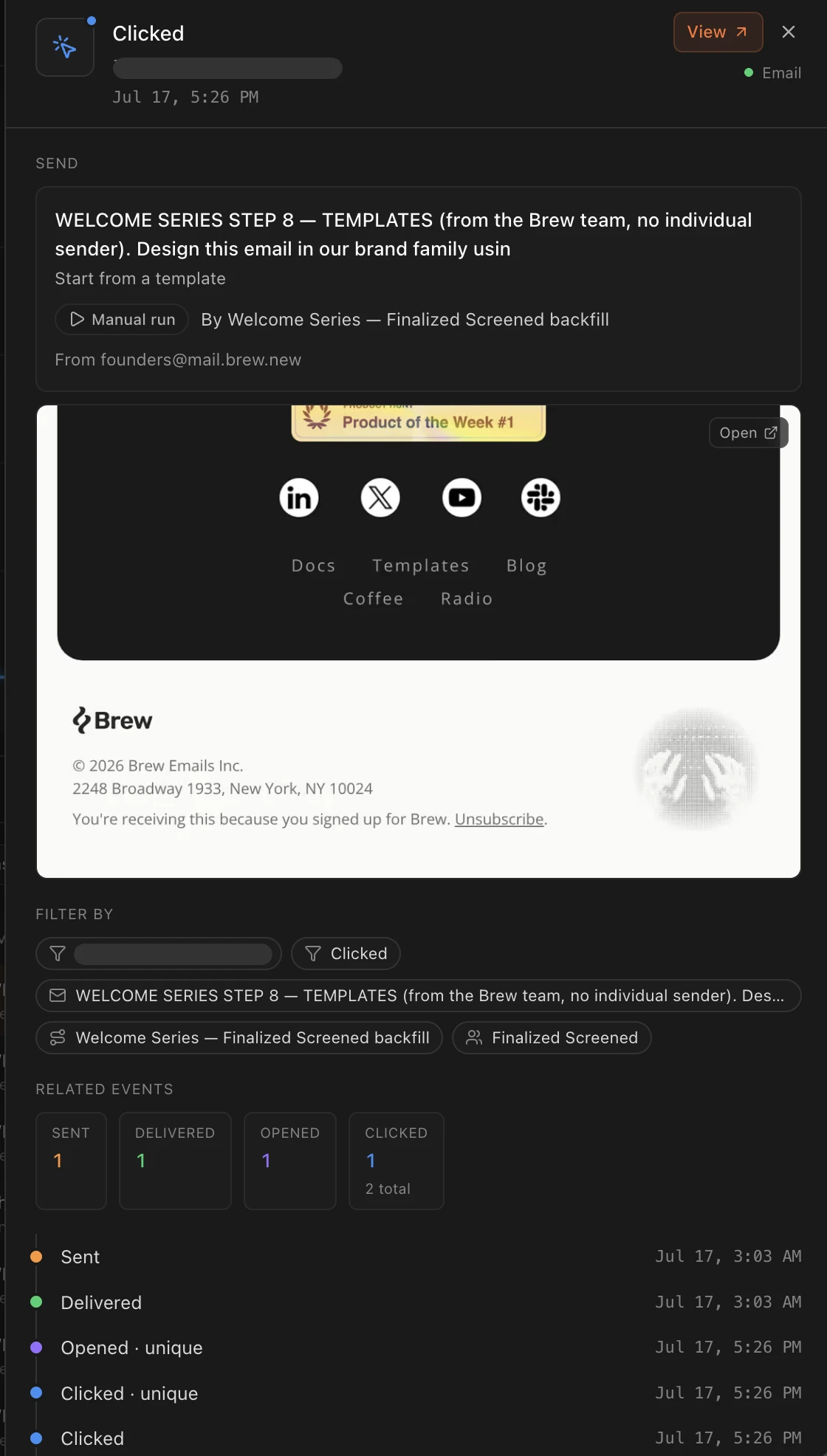 Click events carry two extras: the exact link that was clicked, and a location map of where in the world it happened.
## Get Started
Open **Analytics** from the sidebar. The full walkthrough is in [Reading Analytics](/analytics/reading-analytics), with every metric defined in [Key Metrics and Terms](/analytics/key-metrics-and-terms).
## Related
* [Reading Analytics](/analytics/reading-analytics)
* [Key Metrics and Terms](/analytics/key-metrics-and-terms)
* [Automations](/create-emails/automations)
Click events carry two extras: the exact link that was clicked, and a location map of where in the world it happened.
## Get Started
Open **Analytics** from the sidebar. The full walkthrough is in [Reading Analytics](/analytics/reading-analytics), with every metric defined in [Key Metrics and Terms](/analytics/key-metrics-and-terms).
## Related
* [Reading Analytics](/analytics/reading-analytics)
* [Key Metrics and Terms](/analytics/key-metrics-and-terms)
* [Automations](/create-emails/automations)