> ## Documentation Index
> Fetch the complete documentation index at: https://docs.brew.new/llms.txt
> Use this file to discover all available pages before exploring further.
# Brew MCP
> Run your email marketing from Claude, Cursor, or any AI assistant. Connect by signing in, no API key to copy.
**June 30, 2026** · Available on all plans.
## What Shipped
Until now, Brew ran in the Brew app. Today, we're shipping the Brew MCP
server: connect Brew to your AI assistant and it does real work, not just
talk about it. Draft an email, send it, build an automation, segment your
list, pull the numbers, all on-brand and through your verified domain.
* Brew's full toolset: drafting, sending, audiences, automations, and
analytics
* One connection, scoped to one brand
* Works with Claude, Cursor, ChatGPT, and any MCP client
* Read tools are free; sends and generations cost credits, and the capability
catalog lists each cost up front
## Connect
Brew is its own OAuth 2.1 connector, so most clients connect with no key at
all. Add the connection URL as a custom connector, it's the same for every
brand:
```
https://brew.new/api/mcp
```
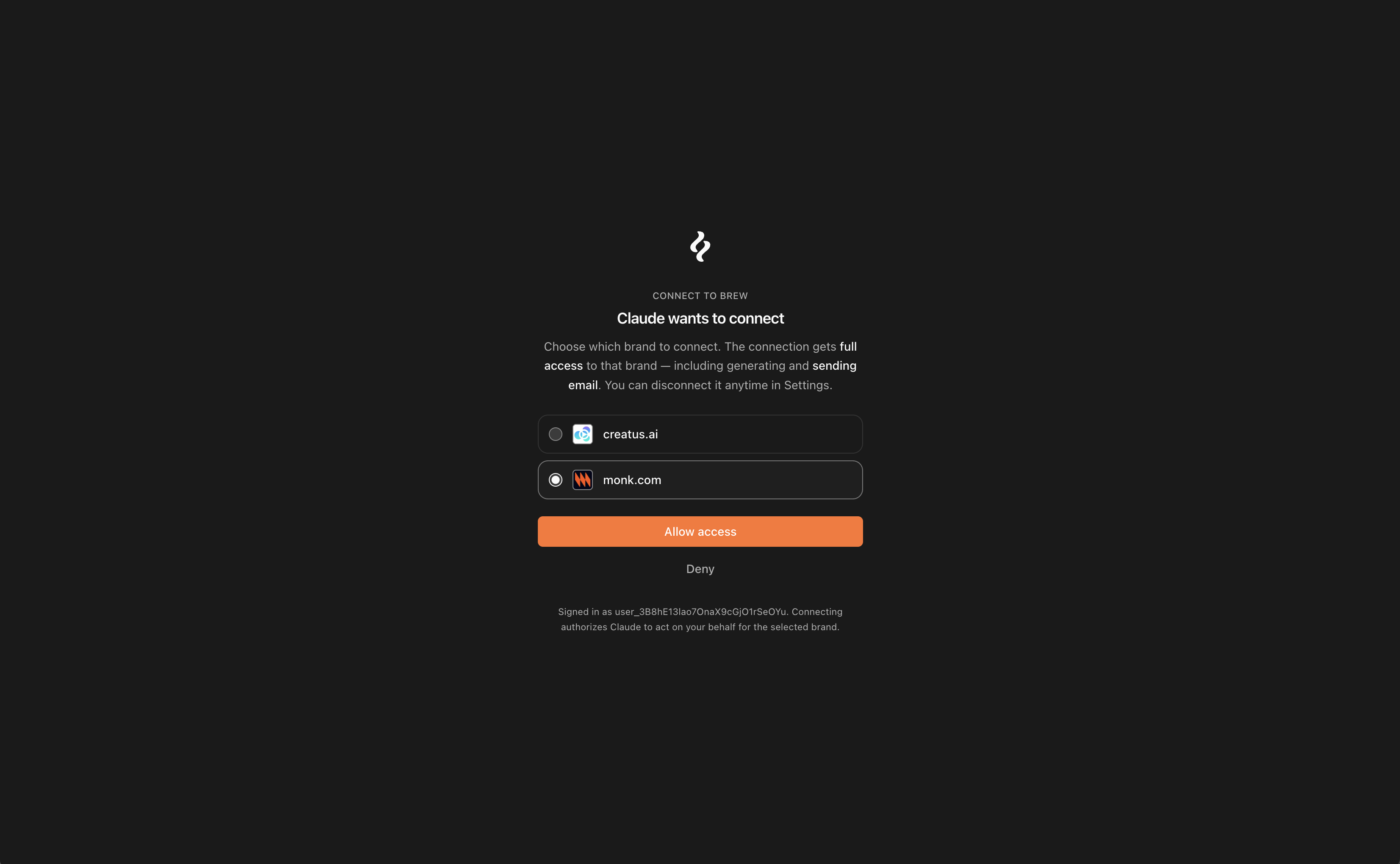
On first connect your client opens the browser. Sign in with Brew, pick a
brand, done. Brew issues a token scoped to that one brand. See it under
**Settings**, then **API**, marked "Connected via OAuth," and revoke it there
anytime.
 Claude, Cursor, and VS Code run the one-click flow. Any other MCP client
takes the same URL as a manual connector. To work on a different brand,
connect again and pick it. Headless or CI setup with no sign-in screen? A
brand-scoped API key still works as a bearer header.
Once connected, ask your agent to call `get_brew_capabilities` first. It
returns the tool catalog, scopes, credit costs, and the built-in workflows,
so the agent knows what it can do before it acts.
## Launch an Email Campaign
The full create, send, analyze loop runs in one conversation. Ask your
assistant to "write a launch email, match our brand, schedule it Tuesday 9am
to trials," and it chains:
```
1. create_email_design generate on-brand from a prompt
2. send_email test: true QA it
3. list_domains + list_audiences
4. send_email audienceId, domainId, idempotency_key
5. get_send_analytics + get_campaign_analytics
```
Every write tool takes an `idempotency_key` so a retry never sends twice.
`send_email` is fail-closed: it refuses rather than risk a double send.
## Build Automations and Segments
`create_trigger`, `create_automation`, then
`update_automation { published: true }` stands up a welcome series or
win-back flow. `create_audience` with filters builds a segment from a
plain-English description. `test_automation` dry-runs before you publish.
## Compose with Your CRM
Connect Brew alongside a CRM or enrichment MCP like Clay or Attio. Your
assistant pulls fresh data on a contact, writes it to their Brew profile
with `create_custom_field`, segments on it, sends a one-off email to that group,
and reads the analytics, no copying between tabs.
## Resume a Brew Chat in Your Assistant
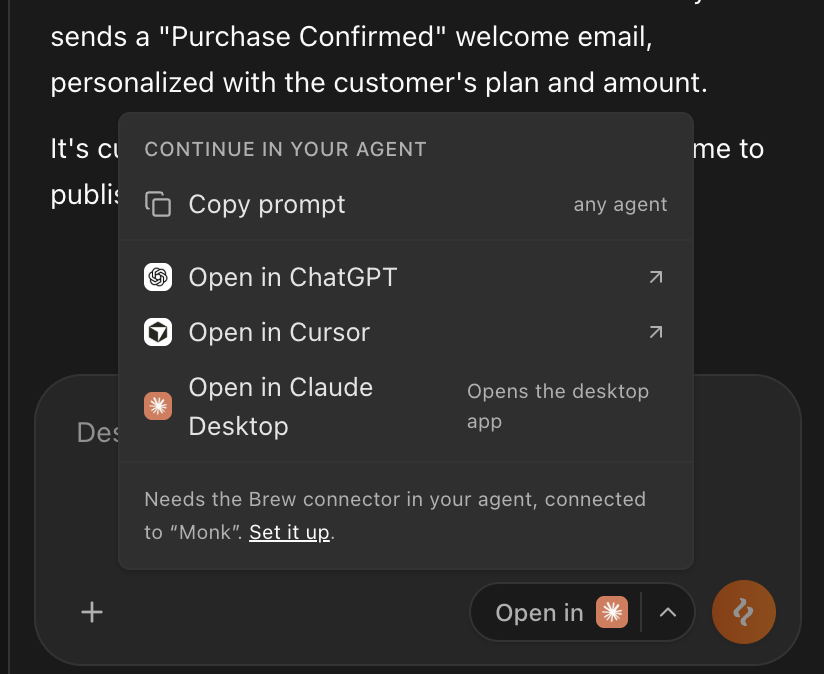
We also added a button to move a conversation from Brew into your own
assistant. Start a new email in Brew, hit the button, and your assistant
loads the full context: what's been done, and the emails, automations,
brand, and audiences the chat references.
Claude, Cursor, and VS Code run the one-click flow. Any other MCP client
takes the same URL as a manual connector. To work on a different brand,
connect again and pick it. Headless or CI setup with no sign-in screen? A
brand-scoped API key still works as a bearer header.
Once connected, ask your agent to call `get_brew_capabilities` first. It
returns the tool catalog, scopes, credit costs, and the built-in workflows,
so the agent knows what it can do before it acts.
## Launch an Email Campaign
The full create, send, analyze loop runs in one conversation. Ask your
assistant to "write a launch email, match our brand, schedule it Tuesday 9am
to trials," and it chains:
```
1. create_email_design generate on-brand from a prompt
2. send_email test: true QA it
3. list_domains + list_audiences
4. send_email audienceId, domainId, idempotency_key
5. get_send_analytics + get_campaign_analytics
```
Every write tool takes an `idempotency_key` so a retry never sends twice.
`send_email` is fail-closed: it refuses rather than risk a double send.
## Build Automations and Segments
`create_trigger`, `create_automation`, then
`update_automation { published: true }` stands up a welcome series or
win-back flow. `create_audience` with filters builds a segment from a
plain-English description. `test_automation` dry-runs before you publish.
## Compose with Your CRM
Connect Brew alongside a CRM or enrichment MCP like Clay or Attio. Your
assistant pulls fresh data on a contact, writes it to their Brew profile
with `create_custom_field`, segments on it, sends a one-off email to that group,
and reads the analytics, no copying between tabs.
## Resume a Brew Chat in Your Assistant
We also added a button to move a conversation from Brew into your own
assistant. Start a new email in Brew, hit the button, and your assistant
loads the full context: what's been done, and the emails, automations,
brand, and audiences the chat references.
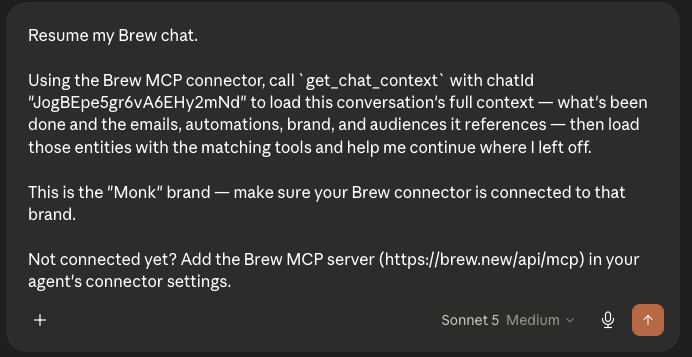
 It calls `get_chat_context` with the chat ID, then loads each referenced
entity with its matching tool, so you pick up exactly where you left off.
It calls `get_chat_context` with the chat ID, then loads each referenced
entity with its matching tool, so you pick up exactly where you left off.
 ## Get Started
[Read the Setup Docs](/api-reference/mcp/overview) or connect your client in
the [MCP Quickstart](/api-reference/mcp/quickstart).
## Related
* [MCP Overview](/api-reference/mcp/overview)
* [Connect Your Client](/api-reference/mcp/connect-your-client)
* [MCP Tools](/api-reference/mcp/tools)
## Get Started
[Read the Setup Docs](/api-reference/mcp/overview) or connect your client in
the [MCP Quickstart](/api-reference/mcp/quickstart).
## Related
* [MCP Overview](/api-reference/mcp/overview)
* [Connect Your Client](/api-reference/mcp/connect-your-client)
* [MCP Tools](/api-reference/mcp/tools)